26. ASM Basics

Intro to 6502 ASM, with the ca65 assembler. Links for reference…

http://www.6502.org/tutorials/6502opcodes.html

http://www.obelisk.me.uk/6502/reference.html

I’ve had a lot of questions about 6502 ASM. One of the features of cc65 is the ca65 assembler, which is a very good one. You can write any, or all, your functions in assembly. But, it would help if you knew how 6502 ASM works…so I’m going to write a few tutorials. All my examples will be ca65 specific, but it might be useful for users of other assemblers. Note, I will usually use $ to indicate hex numbers.

The 6502 has 3 registers. A (the accumulator) and X and Y (index registers). A is for most purposes and calculations. X and Y are for counting loops or indexing arrays.

The NES has 256 zeropage RAM addresses (that is addresses 0 – 0xff) and 1792 non-zeropage RAM addresses (addresses 0x100 – 0x7ff). Some games also have an additional RAM chip on the cartridge, usually mapped to 0x6000-0x7fff. If powered by a battery, it SAVES the game. We prefer zeropage variables to the others, because they only need 1 byte of ROM, to refer to it, rather than 2. Also, they are faster operations.

Let’s go over the syntax of the most common opcode, LDA (load the A register).

LDA 10 (will load the A register from the zero page address $000A). $A is hexadecimal for decimal 10.

LDA $10 (will load the A register from the zero page address $0010. $ means hexadecimal number.)

LDA #10 (will load the A register with the value 10. # means immediate mode. We want a value and not a RAM address.)

LDA #$10 (will load the A register with the value 16, which is the same as $10. Again, the # means it’s a value, not an address.)

Declaring constants.

zip = 0
FOO = $3f
LIVES = $03e3

When used in assembly code, the assembler will replace the symbol with the value you define.

Examples:

-> here means ‘assembles into’
the left-most part is what you will be typing

LDA #zip -> LDA #0   load A with value 0, the '#' means value, not address
LDA zip  -> LDA 0  load A from the 8-bit address $00
LDA #FOO -> LDA #$3f load A with the value $3f
LDA FOO  -> LDA $3f  load A from the 8-bit address $3f
LDA LIVES -> LDA $03e3 load A from the 16-bit address $03e3
LDA # LDA #$e3 load A with the value (lower byte of $03e3 = $e3)
LDA #>LIVES -> LDA #$03 load A with the value (upper byte of $03e3 = $03)

< gets the lower byte of a 2 byte expression > gets the upper byte of a 2 byte expression

LDA #LIVES -> produces an error. The assembler was expecting an 8-bit number.

Declaring variables.

.segment "ZEROPAGE"
foo: .res 1
bar: .res 2

foo will be reserved 1 byte at address $00, and bar will be reserved 2 bytes at addresses $01 and $02.

LDA foo  -> LDA $00 load A from the 8-bit address $00
LDA bar  -> LDA $01 load A from the 8-bit address $01
LDA bar+1  -> LDA $02 load A from the 8-bit address ($01 + 1 = $02)

Note that the bar+1 here is a “compile time constant”. The assembler knows the value of bar and will add one to it at compile time. This will still execute as a standard LDA from a zero page address.

.segment  "BSS"
fooz: .res 1
baz: .res 2

As I described above, I’m defining the BSS section in the .cfg file as being from $300-$3ff. Therefore, the assembler will reserve 1 byte for fooz at $0300 and 2 bytes for baz at $0301 and $0302.

LDA fooz  -> LDA $0300 load A from the 16-bit address $0300
LDA baz  -> LDA $0301 load A from the 16-bit address $0301
LDA baz+1  -> LDA $0302 load A from the 16-bit address ($0301 + 1 = $0302)

Importantly, we don’t need to know what value is reserved when writing code. The assembler will keep track of the values and addresses of every label, you just have to reference them in your code using the labels/variable name.
* constants and variables should be defined at the very top of the ASM page.

Referencing ROM addresses in code, using labels.

.segment  "CODE"
LDA Table1
LDA Table1+1
...
Table1:
.byte $01, $02

(note, you could also put Table1 in the “RODATA” segment, if you like)

Let’s say that the assembler has calculated that Table1 will be at address $8050. This will assemble into…

LDA $8050 load A from the 16-bit address $8050
LDA $8051 load A from the 16-bit address $8051

when the program is RUNNING, the first line will load A with the value #01 and the second line will load A with the value #02…because those are the values in the ROM at 8050 and 8051.

OK, now that we understand how the labels work, let’s do some code…using C examples, and how to do it in ASM. There are 3 registers in the 6502. A, X, and Y.

foo = 3;

LDA #3  	load A with value 3
STA foo  	store A at address foo

or we could have used the other registers…

LDX #3  	load X with value 3
STX foo  	store X at address foo
or
LDY #3  	load Y with value 3
STY foo  	store Y at address foo

There is no difference which register you use for this kind of thing.
.

bar = $31f; //a 16-bit value

From working with cc65, I now have a habit of using A for low bytes and X for high bytes (as the cc65 compiler tends to do)…

LDA #$1f 	load A with the value $1f
LDX #$03 	load X with the value 3
STA bar  	store A to address bar
STX bar+1 	store X to the address bar+1
we could also have done...
LDA #$1f 	load A with the value $1f
STA bar  	store A to address bar
LDA #$03 	load A with the value 3
sta bar+1 	store A to the address bar+1

baz = bar; //a 16-bit value

LDA bar  	load A from the address bar
LDX bar+1 	load X from the address bar+1
STA baz  	store A to the addres baz
STX baz+1 	store X to the address baz+1
again, we could have done...
LDA bar  	load A from the address bar
STA baz  	store A to the addres baz
LDA bar+1 	load A from the address bar+1
STA baz+1 	store A to the addres baz+1

Next thing…increment / decrement

foo++;

INC foo  add 1 to the value stored at foo

foo- -;

DEC foo  subtract 1 from the value stored at foo

you can also increment and decrement the X and Y registers

INX  add 1 to the X register
INY  add 1 to the Y register
DEX  subtract 1 from the X register
DEY  subtract 1 from the Y register

You will have to use adding/subtraction to ++ or – – the A register.
Which brings us to simple math…in fact very very simple math. The 6502 can only do addition and subtraction, and bit-shift multiplication. And, ONLY the A register can do math or bit-shifting.

Adding is always done ‘with carry’. The 6502 has certain FLAGS to assist math, and for doing comparisons. If the result of addition is > 255, then it sets the carry flag – in case you are doing 16-bit math (or more). If the result of addition is <= 255, the the carry flag is reset to zero. But, it always adds A + value + carry flag. Therefore, we must ‘clear the carry flag’ before addition. Here’s an example…

A reg. + value + carry flag = 
result now in A // carry flag
4+4+0  = A = 8, carry = 0
4+4+1  = A = 9, carry = 0
255+4+0  = A = 3, carry = 1
255+4+1 = A = 4, carry = 1

foo = fooz + 1; //8-bit only

LDA fooz 	load A from address fooz
CLC  		clear the carry flag
ADC #1  	add w carry A + value 1, the result is now in A
STA foo  	store A to the address foo

or, reverse them, get the same result…
foo = 1 + fooz; //8-bit only

LDA #1  	load A with value 1
CLC  		clear the carry flag
ADC fooz 	add w carry A + value at address fooz, result now in A
STA foo  	store A to the address foo

Let’s do a 16-bit example.

bar = baz + $315; 16-bit values

LDA baz  	load A from address baz
CLC  		clear the carry flag
ADC #$15 	add w carry A + value $15 (the low byte)
  if the result is > 255, the carry flag will be set, else reset to zero
STA bar  	store A to the address bar
LDA baz+1 	load A from the address baz+1
  ...notice, we don't clear the carry flag, we are using the
  carry flag result of the previous addition as part of this addition
ADC #$03 	add w carry A + value $03 (the high byte)
STA bar+1 	store A to the address bar+1

And, some subtraction. Like the ADC, subtraction always uses the carry flag, but in reverse. It’s called Subtract with Carry. You need to SET the carry flag before a SBC operation. If the result of subtraction underflows below 0, it will reset the carry flag to zero. Else, it will set the carry flag. Again, this is in case you want to do 16-bit (or more) math.

(on a side note the carry flag here works the opposite as is does on most other microprocessors, where the carry flag works as a borrow.)

Here’s some examples…
! = NOT…ie, the opposite

A reg. - value - !carry flag = 
result now in A // new carry flag status
8-4-!1  = A = 4 // carry = 1
8-4-!0  = A = 3 // carry = 1
4-5-!1  = A = 255 // carry = 0
4-5-!0  = A = 254 // carry = 0

foo = fooz – 1; //8-bit only

LDA fooz 	load A from address fooz
SEC  		set the carry flag
SBC #1  	subtract value 1 from A, result is now in A
STA foo  	store A to address foo

And the reverse, which is a different thing altogether…

foo = 1 – fooz; //8-bit only

LDA #1  	load A with value 1
SEC  		set the carry flag
SBC fooz 	subtract value at address fooz from A, result is now in A
STA foo  	store A to address foo

And a 16-bit example…
bar = baz – $315; //16-bit numbers

LDA baz  	load A from address baz
SEC  		set the carry flag
SBC #$15 	subtract value $15 from A, result is now in A
STA bar  	store A to address bar
LDA baz+1 	load A from addres baz+1
  ...notice, we DON'T set the carry flag. We are using the result
  of the last math to set/reset the carry flag.
SBC #$03 	subtract value 3 from A (and subtract !carry), result now in A
STA bar+1 	store A to the address bar+1

.

Stay tuned for many more ASM lessons to come.

25. Importing a MIDI to Famitracker

I’ve read every webpage on this subject, and not one explains how to do this. It’s not easy, because they never got the Import MIDI feature working right in Famitracker…In fact, they removed that feature. You have to download version 0.4.2 to use that feature.

http://famitracker.com/downloads.php

I create MIDI files by connecting a MIDI keyboard to my computer with a MIDI to USB cable. I record with a program called REAPER. It costs $60, and you can use it for free for 60 days… (I’m using version 5.12 for this example). I highly recommend it for all music production, except sound editing…for that I use Audacity. Here’s the REAPER website.

http://www.reaper.fm/

First thing…you’re going to want to use a virtual instrument VST or VSTi. This has no effect on the output file, but it will help you hear the MIDI track. I’m pretty sure that Reaper has some default VST instruments that would work fine. But, I also found this one, which simulates the 2A03 chip (NES sound).

Nintendo VST

Go to OPTIONS/PREFERENCES/MIDI/ and change the ‘Ticks per Quarter Note’ to 96.

Click INSERT / Virtual Instrument. Find the VST-NES. (I set it to polyphonic). Listen to a metronome set to 120 BPM (the same as the project speed). Try to hit every note in beat with the metronome. By default the VST track you just added should be ‘Armed for record’ (the red circle by the name of the track). That’s what we want. Now, hit record (it’s sort of in the middle on the left – by the play/pause buttons.)

Reaper1

I prefer to play on a MIDI keyboard (while listening to the headphone output of the keyboard — and a metronome — rather than listening to the computer…because there will always be some annoying latency). You can also play using the virtual keyboard (you have to click on it for it to work). It is mapped to letters on your computer keyboard. You can change the mapping by right clicking on the virtual keyboard.

When done recording, hit stop.

Now, double-click on the MIDI track. If you did a fair job of playing on the beat, the notes will be mostly lined up to the grid. Now, click EDIT/QUANTIZE…’use the grid’, ‘all events’, and ‘position and note end’. Now all the notes should be perfectly lined up. If some of them are out of position, move them around as needed.

Quantizing works better with certain grid settings than others. At the bottom of the MIDI editor, where it says ‘Grid’…set it to 1/8, or something similar.

You might want to only record a single note at a time (ie, no chords). In my example here there will be up to 2 notes at the same time. To get it to load correctly in Famitracker, you have to put the second note on a different channel. By default all the notes will be on channel 1. Select all the notes you want to switch channels. (I like to put bass notes in the triangle channel, because it can go an octave lower than the square channel.) To select notes (from the piano roll MIDI editor) right-click and drag while holding down CTRL. Once you’ve selected all the notes, right-click one of them, click ‘Note Channel’, 3 (for example).

Reaper2

OK, now we’re almost done…

While still in the MIDI editor screen, click… FILE/EXPORT TO NEW MIDI FILE, and save it.

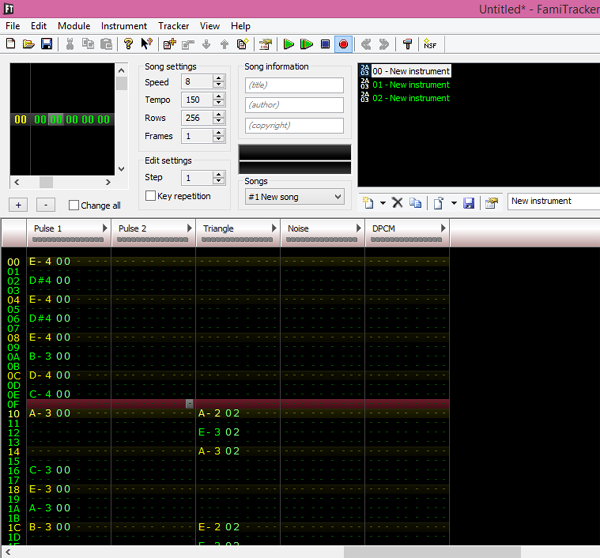
Now, Open Famitracker 0.4.2. (the last version to have a MIDI import feature).

Click FILE/IMPORT MIDI, and I have the lower notes (Channel 3) going to the Triangle Channel, and the rest (Channel 1) going to square one. The default pattern length of 128 is probably going to work fine, we’ll keep it there.

Famitracker usually calculates the number of frames wrong, just click ‘arrow up’ next to ‘Frames’ to see the last bits of the MIDI track.

Set the speed to about 5 – 10, tempo 150. Add 3 new instruments (with volume and duty sequences). Now save, and close Famitracker, and open the file with the newest (more stable) version of Famitracker.

All the Triangle channel notes will be an Octave too low. Click somewhere on the Triangle track. CTRL-A (select all) and then Right-Click on the Triangle track. TRANSPOSE/INCREASE OCTAVE. If you have multiple frames, you will probably have to repeat this for every frame.

And, we’re done. Sounds right to me. That was easy, right?

FT3

If you need to bump things up or down… INSERT moves everything down from the highlighted point. BACKSPACE will move everything up from the highlighted point (deleting the one above it).

I’ve tried this with some freeware MIDI editors, but they just don’t have the features of REAPER. I’m sure many of the better DAWs out there will do the same thing, but you just can’t beat the $60 price tag.

(Thanks to Bavi_H for improving this technique / added information).

14. Intro to Sound

Here’s everything you never wanted to know about the APU, which makes the sounds on the NES. You can promptly forget everything once you start using a tool like Famitracker.

Go download this Sound Test NES file, written by SnoBrow

  • I rewrote it so it would work on a real NES and all emulators

https://github.com/nesdoug/NES_SOUND/blob/master/SNDTEST2.NES

Pressing ‘select’ switches sound channels. Pressing ‘start’ triggers whatever sound data you have on screen to play on that channel. In this program, Channel 0 = Square 1, Channel 1 = Square 2, Channel 3 = Triangle, Channel 4 = Noise.

The sound registers are mapped to $4000-4017.

4000-4003 = Square 1 registers

4004-4007 = Square 2 registers

4008-400b = Triangle registers

400c-400f = Noise registers

4010-4013 = DMC channel

4015 = controls audio output

4017 = frame counter

————————-

Terms borrowed from http://wiki.nesdev.com/w/index.php/APU

4000-4003 = Square 1 channel

4000 = DDLC VVVV

D = duty cycle, changes the shape of the sound wave (basically, 10 = smooth, 01 or 11 = ok, 00 = annoying…reminds me of Atari sounds).

L = loop (repeats the sound)

C = constant volume

V = volume (sometimes)

If neither L or C set, it works like a volume envelope, that starts loud and gets quieter and quieter. If you set a note length of 0000 1 (in register 4003) you can really hear the volume envelope get quiter. V = length of note, V of 0 is still audible.

If L is set (and C not), V = how fast to repeat the sound. Smaller V = faster repeated sound. (Full volume) V of 0 is fast beeps.

If C is set (and not L), V controls the volume of the channel. The note will stop after a short period (length based on L bits in 4003). V of 0 is off.

If C and L set, V will control volume of the channel, and the note will play infinitely, until you write another value to 4000. This is actually how it’s set all the time in music code. You control the length by counting frames, you make a volume envelope by changing the volume every frame, and end the note by either setting a volume of zero, or a frequency of zero. To silence Square Channels, set a volume of zero ($4000 = $30).

4001 – The frequency sweep register

4001 = EPPP NSSS

E = turns on a frequency sweep

P = smaller = faster sweep

N = 0 = sweep down, 1 = sweep up

S = smaller = faster sweep

Note, once it reaches the end of the sweep, the note will stop, even if you have it set to play constantly. Setting Sweep and Loop will repeat a few times until the sweep ends. This can produce cool effects.

4002 = TTTT TTTT = Low byte of the note frequency

4003 = LLLL LTTT

L = affects the length of the note, assuming you don’t have it set to play constant notes (L & C both set in 4000). Very oddly set up. 0000 1 = a very long note.

T = high 3 bits of the note frequency.

Note: in order for for the lowest notes to play, the N flag ($4001) has to be set (for example, some games write $7f to $4001 when sweeps are off).

Also: the highest note playable is 000..0000 1000. Any frequency higher (such as 000..0000 0111) will produce silence from the Square 1 channel. You wouldn’t want it any higher, it’s very annoying at the upper frequency range.

———————————

4004-4007 = Square 2 Channel, exactly the same as Square 1.

———————————

4008-400b = Triangle Channel

4008 – CRRR RRRR (C = constant, infinite note)

R = weird. Changing these numbers seems to effect the length of the note. Just set this to $ff for constant notes and $80 for off (silence). If set to $7f, the length will be controlled by the L bits of $400b. (Thanks for correcting me).

4009 – not used.

400a – TTTT TTTT – low byte of the note frequency

400b – LLLL LTTT – length and high bits of frequency…see the Sq 1 channel for details.

Note – There is no volume control for the Triangle Channel. Also, it will play 1 octave lower than the same settings on a square channel. Unlike the Square Channels, Triangle frequencies can go above 000 0000 1000 (such as 000 0000 0100), and play very very high pitches.

—————————–

400c-400f = Noise Channel

400c – xxLC VVVV – same as Square Channel, except no duty cycle.

400d – not used

400e – Z- – – TTTT

Z = if 0, sounds like white noise

If 1, sounds like metallic clangs

T = note frequency, more = lower. A frequency of zero will play the highest pitch sound.

400f – LLLL L- – – –

L = affects the length of the note, assuming it isn’t set to play constant notes (L & C both set).

To silence the Noise Channel, set a volume of zero ($400c = $30).

—————

DMC channel, is a kind of low sample rate sound compression. The fastest sample rate gives a reasonable sound quality, but takes up a huge amount of ROM space. Slower sample rate takes up less space, but have an annoying high pitch hum, and lower quality sound.

Use DMC sparingly. You can also have very short looped samples, which might work for Bass Notes. I think the most common use for the DMC is improved drum sounds, and single words that sound like human speech – “Fight”.

4010 – IL- – RRRR

I = set DMC triggered IRQs

L = Loop samples

R = Sample Rate (F = highest)

4011 – xDDD DDDD = Load. Essentially the starting value for a sample, some settings here will make a sample quieter. This can also be used (by continually changing the value) to make high quality PCM sound.

4012 – AAAA AAAA = Address of the sample…

%11AA AAAA.AA00 0000

Therefore, the lowest address is 11000000 00000000 = $C000

…and the highest address is 11111111 11000000 = $ffc0.

Note, DMC samples must be located between $c000 and $ffff. You can make samples with Famitracker.

4013 – LLLL LLLL = Length of the sample…

%LLLL.LLLL 0001

The smallest sample is 10001 = $11 bytes. The largest sample is $ff1 bytes. (You could play samples back to back, if that’s too short).

4015 – Controls which channels are on. USE THIS TO START AND STOP THE DMC CHANNEL.

4015 – – – 5 4 3 2 1

1. Square 1

2. Square 2

3. Triangle

4. Noise

5. DMC

4017 – I never learned what this is for, except that the startup code for most games stores 0x40 here right at the start, I think to turn off some kind of IRQ.

———————

For the first 4 Channels, the note will trigger when their last register is written…4003 triggers Square 1, 4007 triggers Square 2, 400b – Triangle, 400f Noise. Repeatedly writing to these (every frame) can produce unpleasant clicks.

To trigger a DMC sound, first write $0f to 4015, then write $1f to 4015. Or, if the DMC sample has ended, merely writing $1f to 4015 will retrigger the sample to play.

——————

Extra sound channels. Some advanced mappers (special cartridges) have additional sound channels. VRC7, for example has a more advanced FM synthesis chip (only used in 1 game, Lagrange Point).

——————-

PCM, ie. high quality sound. I’ve never tried this, but my understanding is, you can simulate high quality sound by writing values over and over to 4011. This would take so much of the CPU, that it would be impossible to run game logic while this was going on. Perhaps it could be done on a static Title Screen.

———————-

Let’s add some quick sound code, just for fun. Insert this into the infinite loop of one of the lessons, if you want. Make sure that sound channels are on…

*((unsigned char*)0x4015) = 0x0f;

//Quick beep –

if (((joypad1old & START) == 0)&&((joypad1 & START) != 0)){

*((unsigned char*)0x4000) = 0x0f;

*((unsigned char*)0x4003) = 0x01;

}


//sweep effect – jump sound

if (((joypad1old & START) == 0)&&((joypad1 & START) != 0)){

*((unsigned char*)0x4000) = 0x0f;

*((unsigned char*)0x4001) = 0xab;

*((unsigned char*)0x4003) = 0x01;

}


//Noise test –

if (((joypad1old & START) == 0)&&((joypad1 & START) != 0)){

*((unsigned char*)0x400c) = 0x0f;

*((unsigned char*)0x400e) = 0x0c;

*((unsigned char*)0x400e) = 0x00;

}


Feel free to play around with the SoundTest program, and then immediately, forget everything and move to Famitracker.