19. More things

Now, for something completely different.

Random numbers.

The NES has no good way to generate random numbers.

neslib has rand8() and rand16() functions, but it doesn’t have a good way to seed it. It just uses a constant at startup, meaning that the random numbers will always be exactly the same at reset.

So I wrote a function that puts the frame count into the seed. So, you could put this on a title screen. seed_rng()

This just pushes the frame counter (an internal value) to the random seed. So it isn’t random at startup either, which is why you should wait for user input to randomly trigger it, like “PRESS START” on the title screen.

Here’s an example.

23_Random

https://github.com/nesdoug/23_Random/blob/master/Random.c

https://github.com/nesdoug/23_Random

Note: rand8() is not very good. It repeats itself in a determinate loop of 255 numbers, regardless of the seed. Changing the seed only changes the starting position of that loop. If you truly need random numbers you should use the standard C function rand() and srand() to seed that. If you are using a recent cc65 version (2016 or later), it will produce a much better set of random numbers than rand8. If you use that, you will need to…

#include <stdlib.h>

.

Mappers

So far we’ve been using the most basic mapper, NROM. This is defined in the ines header in crt0.s, in the “HEADER” segment. That is actually importing a linker symbol from the .cfg file, and was zero. NROM is mapper zero. So, to change the mapper number, we change the .cfg file, at the bottom. NES_MAPPER, value = #.

Why change the mapper? Well, if we wanted more PRG space or more CHR, or more RAM, we would need a special cartridge that had those features.

It does that by taking the much larger ROM, and remapping a small piece of it to the CPU address $8000 (for example).

For C programming, it would be especially difficult to use most of the mappers. One function might expect another to exist and jump to it, except it’s not mapped into place…crashing the game.

Possibly, you could put data (not code) into several small chunks, and swap those into place as the game progresses. Another thing you could do is put the music data into alternate banks, and only put them in place when needed.

This is an advanced topic, and I won’t cover it as much as I should. Let’s discuss a few of the more common ones.

CNROM, allows you to change the entire graphics, between 4 options. (see examples below)

AxROM and UxROM have no CHR ROM. The graphics are in the (large) PRG ROM, and need to be loaded to the CHR RAM to be used. AxROM allows you to change the entire $8000-ffff banks where UNROM has $c000-ffff fixed, and allows you to change the $8000-bfff bank. I would prefer UNROM to AxROM, since you could put your C code in the fixed bank and swap data in and out. It would be very difficult to program a AxROM game in C, some ASM will be necessary.

AxROM is fixed mirroring to 1 nametable, but you could use the variation BNROM (Deadly Towers) which isn’t. Because the entire PRG ROM is changed, even the reset vectors, you need to have a reset vector in every set of banks, which should redirect you to the starting bank, if the user presses the RESET button.

In fact, never assume the startup state. The init code should explicitly put the correct initial banks in place before use. The user could press reset while the wrong bank is in place, for instance.

There is a homebrew version on UNROM, mapper 30, UNROM 256, which is much larger than any commercial game. NESmaker uses it. This might be useful for C programming.

Mojon Twins made at least 1 game in C with standard UNROM… you might be able to find example code somewhere on their repository.

For any mapper, you COULD specify that it has RAM at $6000-7fff, in the header. byte 10, bit 4. If you just start writing (reading) to this area, most emulators will assume a PRG RAM chip exists. But, if you want it battery backed (save RAM), you need to indicate it in the header, byte 6, bit 1.

GNROM, mapper 66 (or Wisdom Tree / Color Dreams, mapper 11) can swap the entire PRG and the entire CHR. Of course this presents the same problems as AxROM, getting one bank to call a function in another bank, and making sure the CRT library is available all the time.

.

More advanced mappers, like MMC1.

cppchriscpp uses MMC1 (SxROM) in his C project.

https://github.com/cppchriscpp/nes-starter-kit

some of the bank switching code…

https://github.com/cppchriscpp/nes-starter-kit/tree/master/source/library

You can change the $8000-bfff areas. and you can change either tileset (ppu 0-fff or ppu 1000-1fff). and you can change mirroring from H to V. This is one of the most popular mappers.

And a bit more advanced, MMC3 (TxROM). You can change $8000-9fff, and/or $a000-bfff banks. You can change a smaller area of CHR ROM, as small as $800 sized, for animated backgrounds (waterfalls, etc). And you can use the scanline counter IRQ to do multiple background splits. However, the IRQ code needs to be written in ASM.

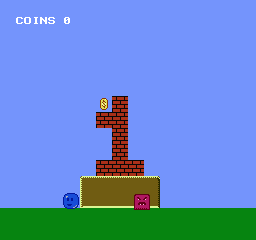
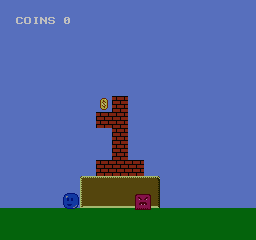
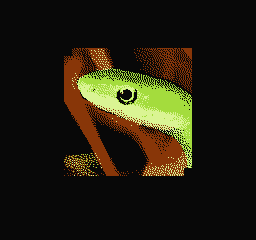
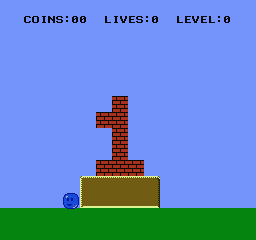
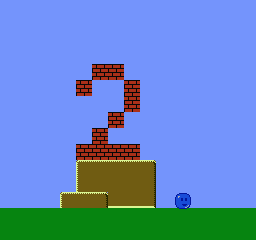
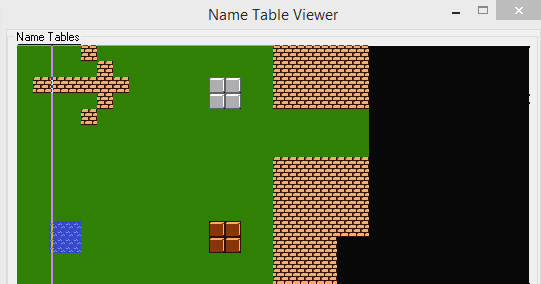
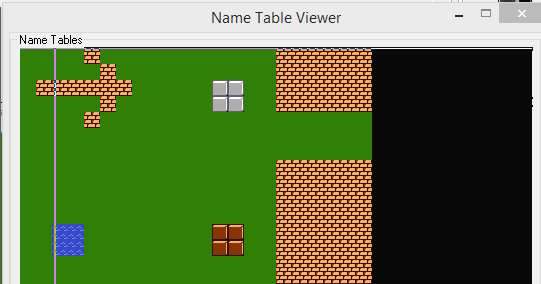
I made a simple CNROM example. There are 4 CHR files, and I’m simply swapping between them, and changing the palette.

CNROM has a technical problem, called bus conflicts. The mapper works by writing to the ROM, which if course you can’t do. If the byte at the ROM is different from the byte written, it might not work… so I made a const array, with values 0-3, and I’m simply writing the same value to the ROM value. I know technically, you’re not supposed to write to a const, but with a little trickery, it is easy. I’m using this POKE() macro:

POKE(address, value);

Which casts the address to a char * and then stores the value there.

Press start, the CHR changes (and the palette). It is entirely the POKE() statement that changes the CHR banks.

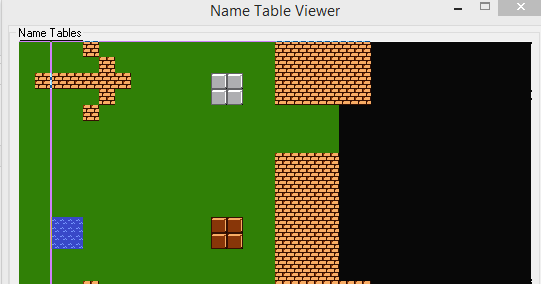
The corners are missing from the picture, because, I needed a blank tile for the rest of the BG, and the RLE compression required that I have 1 unused tile.

24_mappers

https://github.com/nesdoug/24_Mappers/blob/master/mappers.c

https://github.com/nesdoug/24_Mappers

.

.

Further reading on mappers…

https://www.nesdev.org/wiki/Mapper

.

.

18. Sprite Zero

This one is a bit hard to explain. But SMB used it, so most people consider it a standard game element. When you have the top of the screen not scrolling, but the bottom of the screen scrolling, it’s probably a sprite zero screen split.

The sprite zero, is just the first Sprite in the OAM… addresses 0-3. The PPU marks a flag  (register $2002) the first time it sees the a non-transparent pixel of the zero sprite over a non-transparent pixel of the BG. We can look for this flag, and use it to time a mid-screen event, like changing the X scroll.

Waiting for this flag is wasted CPU time. It would be better to use a mapper generated IRQ, like MMC3 / MMC5 scanline counter or Konami VRC 2,4, or 6 scanline counter. Better, because the cartridge would count for you, and you don’t need to poll 2002 repeatedly for changes, and you can do multiple splits per frame.

But, I decided not to cover IRQs in this tutorial. You would need to learn ASM to use those, since IRQ code needs to be written in ASM.

Anyway. once it hits, you know the PPU is on a specific line on the screen, and you can change the scroll position.

Just writing to 2005 twice midscreen can only change the X scroll. This is just how the NES PPU works. You just can’t change the Y scroll by writing to the scroll register mid frame. But, you can change the X scroll. So, I changed the split function to only take 1 argument, X, to better reflect this limitation.

I want the top left screen to be the HUD, so we keep the regular scroll stuck at 0,0. When I set the regular set_scroll_x(0) and set_scroll_y(0), I just keep them at zero.

Then, first thing we do on each frame is poll for Sprite zero right away. We don’t want to miss it! It would crash the game. Send it the actual X. It will adjust the scroll mid screen.

split(scroll_x);

We had to adjust the screen drawing code not to overwrite the top of the screen. Now we have a stable HUD that we can draw our stats to.

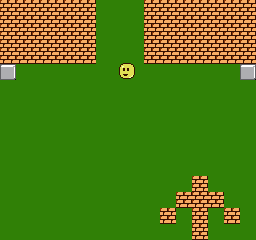
Note that the actual sprite is hidden there on the top right (behind one of the letters of the HUD). You can see it if you press the SELECT button. It will replace the sprite with a white box so you can see where it is.

We need to make sure that the sprite is always there (in OAM), before the first visible frame, so that it won’t go looking for it and never find it on screen (which could crash the game).

21_sprite_zero

https://github.com/nesdoug/21_Sprite_Zero/blob/master/sprite_zero.c

https://github.com/nesdoug/21_Sprite_Zero

.

And, just to contradict myself, we actually can change the Y scroll midscreen with a complicated 2006 2005 2005 2006 trick. I’m doing this last (the bottom of the screen), and it’s more dangerous, because running past the end of the frame before running this function, and the whole game could crash, if it never finds the Sprite zero hit.

But, I wanted to show that it was possible, even if you should never use it. Perhaps for someone braver than me. Perhaps for the top of the screen in a vertically scrolling game.

Anyway, I made this function…

xy_split(x,y);

I had to make some changes to the platformer, since the entire screen is now aligned higher, so I had to adjust the y values of bg collisions. this is probably not the ideal setup, but I just wanted to demonstrate it. I’m putting the top of the screen at the bottom of the screen.

Here’s the example. I guess I should have used the vertical scrolling code to show this better. This could have been done with the regular split code.

22_xy_split

https://github.com/nesdoug/22_XY_Split/blob/master/xy_split.c

https://github.com/nesdoug/22_XY_Split

.

And I was so worried about slowdown causing scrolling errors in the game, that I didn’t end up using the sprite zero hit in the final game, coming up later. These examples work fine, because there is not much game logic, but as soon as we add a few enemies and move them around and have to check collisions, the logic goes longer than 1 frame, and slowdown causes scolling errors on every 2nd frame.

It should be noted that Mojon Twins (na_th_an) uses this same sprite zero split in many of his games, and told me just refactor if scrolling problems happen. Split long tasks into 2 different frames. Check only half the collisions a frame, for example.

17. DPCM sound

This one is a bit tricky. DMC files are huge. You might want to avoid them altogether. Most games don’t use them.

However, you might want to put in a sound effect that sounds like a real thing, a voice saying one word “fight”, or a dog barking, or maybe some more realistic drums, or cool bass line.

Try to keep them very short, like 0.2 seconds. You can / should edit them down with a sound editor like Audacity. I’m using some royalty free samples.

The faster the frequency of the DMC sample, the more bytes of ROM it uses. Faster is higher quality… below rate A, the sound quality is terrible. Maybe split the difference and use C or D. I actually used rate F for mine, but I might have lowered that if I ran out of ROM space.

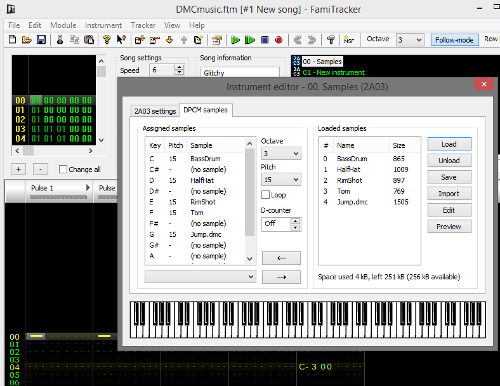
Famitracker can import the sample, and map them to a note. With famitone2, you must put the samples on instrument zero, and use note range C-1..D-6. Also, the instrument zero must have a volume sequence, even if you don’t use it (just a quirk of famitone2). That’s under 2a03 setting, instrument settings. Put a check mark next to volume (this is true for all instruments).

19_FT2

Even if you only want to use the sample as a stand alone sound effect, and not in the song, it must be included in the song like this.

Now, when you export the text it will have the dmc file defined. and when you use text2data it will output a dmc file. Include that in crt0.s in a “dmc” or “sample” or whatever, segment. I called it “SAMPLES”.

This is the tricky part. DMC samples must go between $c000 and $ffc0. preferably as far to the end as possible. Subtract the byte size of the samples from ffc0 and round down to the next xx40. In the cfg file, define the SAMPLE segment to start there.

Now, also, go to the top of crt0.s and define FT_DPCM_OFF to start at the same value.

The .dmc file is 5,248 bytes long. That’s rather large for a NES game. It will be ok for a simple example code, though.

Now, if the samples are in the music, they should play with the music.

But, if you wanted them to be sound effects, you have to call them in your code, like

sample_play(sample#)

How do we know what the sample number is? It depends on what note you mapped them to in your famitracker file. If you look at the output file from text2data (mine is “DMCmusic.s”), you see a samples area. You can tell by the non-zero lengths at the right side, that our samples are at 25, 27, 29, 30 and 32. It counts up from C1, so if we had mapped it to C1, it would be sample_play(1). But the sample I want is at G3, so we need sample_play(32).

I put this with a new jump. It’s just my voice, saying “jump”, to be silly. 🙂

Hope this makes sense.

https://github.com/nesdoug/20_DPCM/blob/master/platformer4.c

https://github.com/nesdoug/20_DPCM


16. Sound effects

Even if you have no music talent, you might be able to make some cool sound effects. Music is nice, but sound effects make if feel like a real game.

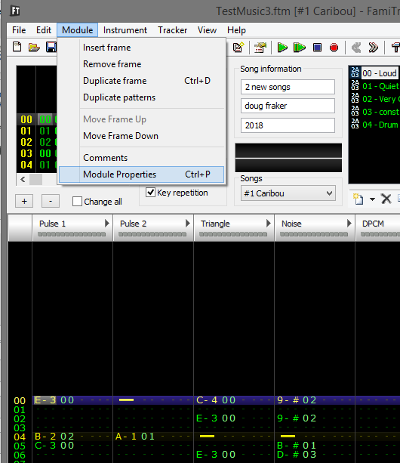
Again, open famitracker. You can use mostly all the fx and any notes. Put all the sound effects in 1 file, each as its own “song”. Add a song in module properties…

18_FT

Try to write the music so pulse channel 1 or triangle play the main melody. And then use pulse channel 2 (or noise channel) for sound effects. That way they don’t collide. If you are having problems with sfx cutting out, you could also try to make the sound effects volume louder than the music (at least a little bit). I actually made my sfx quieter than the music, but louder than the Square 2 channel, where most of the sfx play.

They should be rather short. End every effect with C00, and put the C00 on its own line.

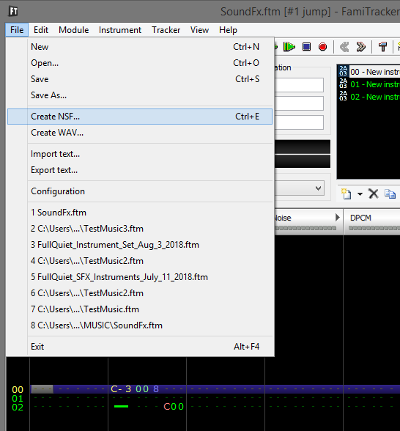
Save. Now, export to NSF file.

19_FT

Open the command prompt and use nsf2data with the -ca65 option. I’m using famitone 2 v1.15. With the nsf file and the nsf2data in the same folder, type CMD in the address bar to open a command prompt, then type…

nsf2data SoundFx.nsf -ca65

and it produced a .s file, which I inlcuded into the project in the crt0.s file, just below the sounds_data label.

And make sure FT_SFX_ENABLE is set at the top, and also that FT_SFX_STREAMS is 1. The init code will initialize our sound effects. Having 1 stream means that only 1 sfx can play at once.

We just need to call the sound effects like…
sfx_play(sfx,channel). Channel means stream, use channel = 0, since we have only 1 activated.

If you want 2-4 streams defined, you could set a channel to 1,2,3. Higher having higher priority. I would caution against having too many, they might conflict. I have used 2 before.

I made it so that jump calls sfx_play(SFX_JUMP, 0). B button plays a noise sfx, and Select button plays a “ding” sfx. I’m going to use that for coin collecting, later.

Start still changes the song.

https://github.com/nesdoug/19_SFX/blob/master/platformer3.c

https://github.com/nesdoug/19_SFX

15. Music

I wrote a page a while back about the NES Audio.

14. Intro to Sound

But, mostly you shouldn’t have to know that much about the sound registers. We are going to use Famitracker to write the music and Famitone 2 v1.15 to play the music. I have been including the famitone code in every example, so that it’s already in place for you. All you have to do is to include the music data file in crt0.s right below music_data:

I’m not the best famitracker musician, so maybe you should watch a tutorial about using it, like this one.

I like this tool chain, but famitone2 has some limitations.

  1. No volume column.
  2. Allowed notes are C-1..D-6, Note Cut
  3. Only Volume, Arpeggio, and Pitch sequences
  4. All instruments should have a volume envelope assigned
  5. no Duty sequence
  6. 64 instruments max
  7. no fx except Tempo Fxx, Looping backwards Bxx, and ending the frame early D00
  8. Up to 17 sub songs in a file

Because there is no volume column, you might want to make a few instruments of different max volume.

And a warning, don’t set ROWS = 256. The text2data program won’t work right.

Put every song into the same file, use “module properties” to add a song.

18_FT

Once everything is done, export a txt file. You need to process this file with famitone2 program text2data.exe. Use the command line, and add the -ca65 switch. I put text2data and the txt file in the same folder, then typed CMD in the address bar, and a command prompt opens. Then I typed

text2data TestMusic3.txt -ca65

and it produced a .s file. This file is then included to the project inside the crt0.s file, right below the music_data label. Our startup code automatically sets a pointer to this file for us.

18_FT2

I wrote 2 songs and imported them into the platformer game.

music_play(0) plays the first song.

music_play(1) plays the second song.

Press “start” to switch between the songs.

The neslib code automatically updates the audio registers to match the song. At the end of the nmi code, FamiToneUpdate is called, once per frame.

If you need to, you can pause the song music_pause(1) and unpause the song music_pause(0). And you can stop the song altogether music_stop().

Oh, and one more side note. I wrote a function that allows you to change the speed of the music with your code. Normally, you could only set the speed inside the famitracker file. But, what if you wanted to speed it up for a boss fight, or slow it down if you are in some stunned state? Well, now you can easily do that with this function…

set_music_speed()

Lower numbers mean faster, bigger means slower. 6 is the default.

https://github.com/nesdoug/18_Music

.

.

On a side note, there are other music drivers.

Pently, has been used in a few games, and might be good for you if you like to write your music with a sheet music tool. It uses a descriptive language. Music Macro Language (MML) or LilyPond can be used.

https://github.com/pinobatch/pently

.

ggsound is another options. NESmaker is using it. I am not familiar enough to give details.

https://github.com/gradualgames/ggsound

.

The full famitracker driver is another option, but it’s very large, and a bit slower than other drivers. You can get it from shiru’s example file.

https://shiru.untergrund.net/files/src/cc65_neslib_famitracker.zip

Or you could look at cppchriscpp’s example code, which uses it, I think (?).

https://github.com/cppchriscpp/nes-starter-kit/tree/master/source/neslib_asm/ft_drv

.

I also wrote some unofficial updates to famitone. They add a volume column, all notes, and some of the famitracker effects.

https://github.com/nesdoug/famitone3.3

https://github.com/nesdoug/famitone5.0

.

14. Platformer

Believe it or not, this is basically the same as the scrolling right code. What makes a platform game different? Gravity. And we need a 16 bit X and Y speed and position. The lower byte represents sub pixel positions. I believe it’s called fixed point math. (I even splurged, and used a signed int or 2, gasp!).

Anyway, for gravity, we add a little to the Y speed every frame. Not too fast, or we might fall right through a floor. So we have a max allowable speed.

And moving left and right I’m slowly accelerating, up to a maximum speed. These define statements in the .h file control all this physics. It should be easy to fine tune now. These are 16 bit values, where the low byte is sub-pixel. So the max speed is really 2.25.

#define ACCEL 30
#define DECEL 50
#define GRAVITY 0x4c
#define MAX_SPEED 0x240
#define JUMP_VEL -0x600
#define MAX_RIGHT 0x9000

And I didn’t want all the platforms to act like solid brick walls. I wanted to be able to jump upward into the platform, but it would catch your feet. So, I added a collision array, which defines how each metatile behaves.

#define COL_DOWN 0x80
#define COL_ALL 0x40

const unsigned char is_solid[]={
0,
COL_DOWN,
COL_ALL+COL_DOWN,
COL_DOWN,
COL_DOWN,
COL_DOWN,
0,
0,
0,
0,
0,
0
};

I had to hand edit these, which is a bit awkward. Each byte is a metatile, and how it will collide.

The BG collision code parses the collision bits, and sends a collision signal, depending on the direction. The main movement code ignores the feet collision if Y speed is negative (rising)

if(BoxGuy1.vel_y > 0) {
BoxGuy1.vel_y = 0;
}

And only sets feet collisions if the feet are just barely inside the block.

if((temp3 & 0x0f) > 3) return 0;

This is why it’s important that Y speed down can’t exceed 3 pixels per frame. Any faster, and you might miss the floor hit.

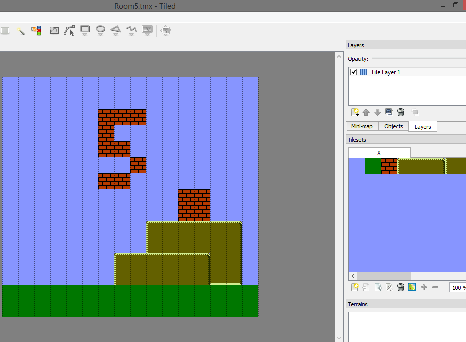
So I made some new blocks in NES Screen Tool, and screenshot to GIMP, save as metatiles.png, import that as a tileset to Tiled. Make some rooms. Export to .csv. Convert to C array. Import to the C code. (easy, right?)

17_Tiled

Now it’s starting to feel like a real game.

17_platformer

https://github.com/nesdoug/17_Platformer

13. Scrolling up

This was much harder than scrolling right. If I had chosen to scroll downward, it might have been easier, because scrolling up is like going backwards in the code.

Skipping over the y values of 0xf0-ff wasn’t that bad as long as you use my functions add_scroll_y() and sub_scroll_y() that handles this for you.  The code assumes that Y position is between 0 and $ef… so you need to skip over the values 0xf0-0xff. These 2 functions can do that for you.

int add_scroll_y(unsigned char add, unsigned int scroll);

This adds an 8 bit value with the 16 bit scroll value, and returns a new scroll value.

.

int sub_scroll_y(unsigned char add, unsigned int scroll);

This subtracts an 8 bit value from the 16 bit scroll value, and returns a new scroll value.

.

But, I also had to use them with the BG collision code, since you can be half in one nametable and half in another.

.

Since scrolling up is going backwards, I’m starting at the maximum scroll position, and going backwards to 0.

I had to build the array of room arrays backwards too.

const unsigned char * const Rooms[]= {
Room5, Room4, Room3, Room2, Room1
};

Anyway, I made 5 more rooms, in Tiled, and exported 5 more csv files, converted to C arrays, and imported those into the code.

16_Tiled

And after a few days of debugging (yikes) it finally works. I have to give some due respect to the guys who made games like Kid Icarus, or Metroid, or Ice Climber, because scrolling upward without bugs was not easy.

Note: we are using the horizontal mirroring (vertical scrolling) cfg file.

16_scroll_up

https://github.com/nesdoug/16_Scroll_Up/blob/master/scroll_up.c

https://github.com/nesdoug/16_Scroll_Up

12. Scrolling right

Ok, THIS is where having an automatic vram buffer system that does updates during NMI really starts to become useful.

There are so many ppu updates in scrolling continuously, it helps to have an auto update system. You want to update on the opposite nametable that you are on so the user can’t see it change. And, only a little at a time (not too many to overload the system). Let’s look at it frame by frame as I’m scrolling to the right. I’m doing buffer_4_mt() twice per frame, which draws 8 blocks per frame.

update1

update2

update3

update4

So, I don’t want to do too many PPU updates in 1 frame, that’s why I break it up into 4 frames of updates.

.

Level design in Tiled.

15_Tiled

So, I made 5 rooms worth of levels (easily expandable). Once you scroll right, it automatically updates just off the screen to the right, where you can’t see. It’s reading data from the collision map, like before, but I have to reload new maps as we move.

There are now 2 collision maps of 16×15 metatiles (240 bytes each). Every time you cross into another room, it loads the next collision map just off the screen to the right. We could have read directly from the ROM for collisions, but the advantage of having it in RAM means it is destructable / modifiable. Like when Mario breaks a block, or when Link (Zelda) pushes a block to the side.

I’m still making the rooms 1 room at a time (see the previous metatile page). The Tiled .csv files are processed with a py script into a c array. I import those to the code, and added an array of pointers to these arrays.

Note, if you expand this, you need to also change the max scroll constant.

I decided that 1 pixel per frame seemed a bit slow, so I modified all the movement and collision code to handle variable speeds bigger than 1 pixel, and also collision ejection bigger than 1 pixel. It seems to work ok now, but I didn’t test speeds over 2 pixels per frame.

And it also works across the room edges, which is the tricky part, but that complicates the math. When it checks bg collision points, each of those points might be in a different room, so I accounted for that.

.

15_scroll_r

https://github.com/nesdoug/15_Scroll_R/blob/master/scroll_r.c

https://github.com/nesdoug/15_Scroll_R

11. Metatiles

What’s a metatile? Just a fancy word for a block of tiles. 2×2 in my case. Why use them? It’s a form of compression. And it simplifies the BG. And the BG palette table (attribute table) can’t modify each tile’s palette selection, only a 2×2 block of tiles, at minimum.

Instead of thinking of a room as 32×30 tiles (960 bytes), the code will treat it like 16×15 metatiles (an array of 240 bytes). We only need 4 bits from X and 4 bits from Y to calculate the offset into a collision array.

index = (y & 0xf0) + (x >> 4);

But, I take it one step further. The collision map can double as an array to draw the BG. I use a system, which allows me to use Tiled Map Editor to draw my levels. Rooms of size 16×15.

But we have to jump through some hoops to make this happen. We can’t draw our graphics in Tiled. The game graphics need to be 2bpp binary CHR files. We could make our graphics in a tile editor. I still recommend YY CHR to start. Then, import the graphics to NES Screen Tool. Then make some 16×16 blocks (2 tiles x 2 tiles) this is a good size because this is the size of the attribute table squares. And, importantly, choosing a palette for each block. If have 2 identical blocks of different color, I make them into 2 different metatiles (see the last 2 blocks… identical tiles, but different palette).

meta_st

Start at the top left and make 16×16 blocks, which are our metatile blocks. My system can only handle 51 metatiles, because it assumes a data set under 256 bytes, and each metatile takes 5 bytes for definition. 51×5 = 255. The latest versions of NES Screen Tool (and NEXXT) can export the nametable as a BMP. This can be imported into Tiled, as a tileset, with the tile dimensions set to 16×16.

(I had to make the tile size in Tiled 32×32 because I actually made a screenshot of NES Screen Tool, and it doubles the pixel dimensions, and saved it as metatiles.png in the BG folder).

We’re not done with NES Screen Tool yet. Save as a nametable with attributes, uncompressed binary as a .nam file. Use my meta.py (python 3 script) to convert it into a c array. Here’s what it output…

const unsigned char metatiles[]={
2, 2, 2, 2, 3,
4, 4, 4, 4, 1,
9, 9, 9, 9, 2,
5, 6, 8, 7, 1,
5, 6, 8, 7, 0
};

4 tiles + 1 palette = 5 bytes per metatile. I copy this array into the code.

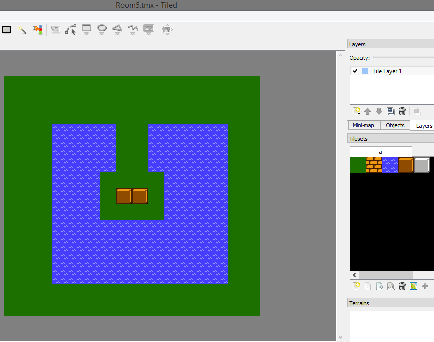
Now, to Tiled, and make my level data. It’s a nice GUI for designing video game levels. We imported the metatiles.png as the tileset. And drew our level.

13_Tiled

Make a level. Save it. Then, export to csv file. you could easily turn that into a c array, but I made a .py file to automate that step, csv2c.py, and turn our csv file to a C array, “Room1.c”. Import that into the game.

.

How does the metatile system work?

Ok. we have our metatile data. we have our level data. How does the metatile system work?

So my metatile system is an extension of the vram buffer system. It can run while the screen is on, but in this example it writes while the screen is off. Instead of waiting for NMI to push our data to the ppu, we’re going to speed up everything by immediately pushing the vram buffer to ppu with flush_vram_update2(). I guess flush usually means empty the buffer, but for this code it means “send it right away”.

I already set up a pointer to the vram buffer… set_vram_buffer(). Also, we need to set a pointer to the metatile definitions set_mt_pointer(metatiles1), and set a pointer to the room data set_data_pointer(Room1). Now we can use the metatile functions.

I made 2 functions for pushing metatiles to the buffer.

buffer_1_mt(address, metatile); // push 1 metatile, no palette changes. (this doesn’t need a pointer to the room data). We could have used this if we read each byte off the room array, and sent that byte as the metatile #. But, you can also use this anytime to change 1 metatile on the screen. However, this function does not send the palette information. I didn’t make it smart enough to modify the attribute table.

buffer_4_mt(address, index); // push 4 metatiles (2×2 block) and set their palettes. Index is the index into the room data array. It actually finds 4 metatile blocks in the room, and pushes each to the vram buffer. This function also sets the attribute table, and you should use this one to load the level.

The room loader code does a loop, and goes to every 32 x 32 pixel block, and converts all the data to metatiles, and prints them to the screen.

for(y=0; ;y+=0x20){
	for(x=0; ;x+=0x20){
		address = get_ppu_addr(0, x, y);
		index = (y & 0xf0) + (x >> 4);
		buffer_4_mt(address, index); // ppu_address, index to the data
		flush_vram_update2();
		if (x == 0xe0) break;
	}
	if (y == 0xe0) break;
}

flush_vram_update2() immediately pushes to the ppu, so the screen needs to be off.

I updated the movement / BG collision code (Feb 2023). We are checking 2 points for X (either 2 on the right, if moving right… or 2 on the left, if moving left). We eject if collision X. Then we check 2 points for Y (either top or bottom) and eject if collision.

The hitbox is actually 13×13 instead of 15×15, so that he can slide into smaller spaces a little better. If you had a large metasprite, bigger than 16×16, you might have to check 3 or more points per side.

We are still colliding with the c_map ( = collision map). Every non zero metatile is solid. This could be improved, so that each bit represents some property of the tile. But for now, lets just say that != 0 means solid.

Here’s what the game looks like, and he’s colliding nicely.
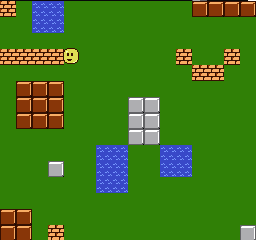
13_metatiles

https://github.com/nesdoug/13_Metatiles/blob/master/metatiles.c

https://github.com/nesdoug/13_Metatiles

.

.

Example 2

And then I made another one, because I wanted to show how buffer_1_mt() worked. It’s basically the same code as the last time… I did have to change the main BG color to green to get this to work how I wanted.

buffer_1_mt() is supposed to be for changing a metatile mid-game. But it doesn’t affect palettes. Changing just 1 metatiles worth of palettes would require changing just 2 bits of a byte of the attribute table, and doing that is quite annoyingly complicated.

buffer_1_mt() requires that you turn on the vram system, set_vram_buffer(), and it needs a pointer set for the metatile definitions set_mt_pointer(metatiles). You just need to give it an address, and tell it which metatile you want to print there.

This was the level data.

.14_Tiled

And I added just 1 more metatile using buffer_1_mt() at the top left.

buffer_1_mt(NTADR_A(4,4),1);

The right parameter (1) means put the #1 metatile (brick), with it’s top left tile starting at 4th tile from the left and 4th tile from the top.

Notice its palette is wrong. buffer_1_mt() doesn’t change attribute bytes. You could fix this, if you knew which bits to send. I don’t want to get into that, but if you uncomment these lines in the code, it would color that block correctly.

address = get_at_addr(0, 32, 32); // tile 4,4 = pixels 32,32
one_vram_buffer(0x01,address); // top left = palette 1
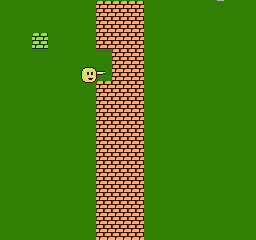
14_metatiles2

I gave the little guy a stick, which pokes to the right if you press A or B. When the stick is out, it checks the collision map to see if there is a block there, and replaces it with blank blocks using the one_vram_buffer() function. (and also changes the collision map byte to zero, so you can walk through it).

void break_wall(void){
	temp_x = BoxGuy1.x >> 8;
	temp_x += 0x16;
	temp_y = BoxGuy1.y >> 8;
	temp_y += 5;
	coordinates = (temp_x>>4) + (temp_y & 0xf0);
	if(c_map[coordinates] == 1){ // if brick
		c_map[coordinates] = 0; // can walk through it
		address = get_ppu_addr(0, temp_x, temp_y);
		buffer_1_mt(address, 0); // put metatile #0 here = blank grass
	}
}

So the system is a bit complicated, but as you can see, the code is pretty straightforward.

https://github.com/nesdoug/14_Metatiles2/blob/master/metatiles2.c

https://github.com/nesdoug/14_Metatiles2

.

We could easily make a non-scrolling game, with just this. You would just need to make room data for each room, and call the room loader when you walk to the edge of the screen. Lot’s of games work like that.

But, I decided to make some scrolling examples, because ultimately, I want to make a platformer. Next time, we add scrolling.

.

.

More than 51 Metatiles

Someone asked me what to do if you need more than 51 kinds of metatiles, so, I made a version that can handle up to 256 metatiles. The nesdoug.s file is different, and does a 16 bit calculation to find the position of the metatile in the array. It’s not very fast, so this could be improved in the future.

(actually the limit is 240, for the way I’m making the metatiles in NES Screen Tool.)

https://github.com/nesdoug/13_Metatiles256

.

.
10. Game loop

Let’s talk about a game loop. Here’s some sample code for a simplified breakout clone.

Games need an infinite loop. while (1) works.

The first item is ppu_wait_nmi(). This sits and waits till the start of a new frame. 60 per second (50 in Europe), the nmi will trigger. But, if the game logic takes too long, and we’re already past the start of nmi before we get to the ppu_wait_nmi(), then it waits an extra frame, and the game will seem to slow down. That hasn’t happened yet, because our code is so short, but it will later, in the platformer game, so keep the loop short and concise.

Then I read the controllers. Both regular pad_poll(0) and the new presses get_pad_new(0).

Then I draw the scoreboard each frame. I’m using one_vram_buffer() and the vram buffer system so we never have to turn the screen off and on to write to the PPU.

Then the game logic, move the paddle. Move the ball. Check if collision with blocks.

Move paddle…

if(pad1 & PAD_LEFT){
	Paddle.X -= 2;
	if(Paddle.X < PADDLE_MIN) Paddle.X = PADDLE_MIN;
}
if(pad1 & PAD_RIGHT){
	Paddle.X += 2;
	if(Paddle.X > PADDLE_MAX) Paddle.X = PADDLE_MAX;
}

Move ball, if active…

if(ball_direction == GOING_UP){
	Ball.Y -= 3;
	if(Ball.Y < MAX_UP){
		ball_direction = GOING_DOWN;
	}
}
else { // going down
	Ball.Y += 3;
	if(Ball.Y > MAX_DOWN){
		--lives01;
		ball_state = BALL_OFF;
	}
}

Then draw the sprites, first by clearing the old, then redrawing all the active sprite objects.

If a block is hit with the ball, hit_block(), it deletes it from the collision map, c_map[temp1] = 0. Then write some blank tiles (zero) to the background at that same position. get_ppu_addr() will find the address of a specific x and y. We just need to push 2 zero tiles at that location. I use the vram buffer system (using one_vram_buffer() twice) to automatically send it to the PPU during the next v-blank.

Normally, I would have different “game_states”, like for title, game, pause, end. I am using different “ball_states” to handle the ball off screen wait “BALL_OFF”, the ball ready to go “BALL_STUCK” (stuck on the paddle), and ball moving “BALL_ACTIVE”.

I started out by making the background in NES Screen Tool. The breakable tiles are defined an array, c1.csv. I did not end up using Tiled for it, because it was easy to type. If this was modified, it would change the layout of the breakable tiles.

const unsigned char c1[]={
0,0,0,0,0,0,0,0,0,0,0,0,0,0,0,0,
0,0,0,0,0,0,0,0,0,0,0,0,0,0,0,0,
0,1,1,1,1,1,1,1,1,1,1,1,1,1,1,0,
0,1,1,1,1,1,1,1,1,1,1,1,1,1,1,0,
0,1,1,1,1,1,1,1,1,1,1,1,1,1,1,0,
0,1,1,1,1,1,1,1,1,1,1,1,1,1,1,0,
0,1,1,1,1,1,1,1,1,1,1,1,1,1,1,0,
0,1,1,1,1,1,1,1,1,1,1,1,1,1,1,0,

0,0,0,0,0,0,0,0,0,0,0,0,0,0,0,0,
0,0,0,0,0,0,0,0,0,0,0,0,0,0,0,0,
0,0,0,0,0,0,0,0,0,0,0,0,0,0,0,0,
0,0,0,0,0,0,0,0,0,0,0,0,0,0,0,0,
0,0,0,0,0,0,0,0,0,0,0,0,0,0,0,0,
0,0,0,0,0,0,0,0,0,0,0,0,0,0,0,0,
0,0,0,0,0,0,0,0,0,0,0,0,0,0,0,0,
0,0,0,0,0,0,0,0,0,0,0,0,0,0,0,0
};

The gray bricks were drawn in NES Screen Tool, and exported as a compressed RLE file. vram_unrle(breaky_bg2) will decompress it to our nametable (remember, this function needs to be used when the screen is off).

12_ST

I changed the attribute tables beforehand, in NES Screen Tool, and save the background. That’s what gives the tiles their color, they are different palettes. But they all use the same tiles. Here is the attribute checker view (press “A”).

12_ST2

And it updates the scoreboard every frame. Notice, I’m keeping each digit of the score as a separate variable (value assumed to be 0-9). score10 is tens digit and score01 is ones digit. Division and modulus are very slow operations on the NES, due to the lack of built in math in the 6502 processor, so keeping each digit separate speeds up the code.

12_breaky

https://github.com/nesdoug/12_Break

Feel free to turn this into a full game. Sideways movement would complicate the logic a bit more. I wanted to keep the example code as simple as possible. Well, line 183 is a bit complicated (sorry about that).

temp1 = (temp_x>>4) + (((temp_y-0x30) << 1) & 0xf0);

but what it does is convert the x and y position of the ball to a position on the array of blocks to break. >>4 is like divide 16… which gets a value 0-15 from the x. The screen Y is misaligned to the array by 0x30. The tiles are actually 8 pixels high (instead of 16), so I had to modify my usual background collision code with a << 1 to get the y value to line up to the array.