09. Scrolling

Scrolling means moving the background around. It does not affect sprites.

The NES PPU has 1 scroll register, 2005. You write to it twice, first the X scroll, and then the Y scroll. This is another thing that needs to happen during v-blank, and is handled automatically by neslib. neslib has this function scroll(x,y), you pass it the shift amounts. Adding to X scroll, shifts the screen left. Adding to the Y scroll shifts the screen up.

But, I decided that I didn’t like the way it handled Y scrolling. Y scrolling is a bit odd anyway, since values 0-$ef are real positions, and $f0 – ff are treated as negative values, and not what you want. neslib subtracts $f0 if the Y value is > $ef, and assumes that you are going to manage the maximum at $1df.

So, long story short, I do things differently than everyone else using C. I made 2 functions called set_scroll_x(x) and set_scroll_y(y). You can pass the set_scroll_y any int value, and the high byte will tell you which nametable you are in. Even means top, odd means bottom. If you have 2 collision maps, you know even = use the first one, odd = use the second one. Simple. Well, not perfect.

Our code still has to skip over the $f0-ff region, because our screen is only 240 pixels high. Luckily, I wrote some functions to do this for us.

add_scroll_y(add, old y) to add to the y scroll.

sub_scroll_y(add, old y) to subtract from the y scroll.

Each returns a value, which will have to be passed to set_scroll_y(), to change the screen scroll.

Examples…

ADD

scroll_y = 0xef, add 5. This returns 0x104

scroll_y = add_scroll_y(5, scroll_y);

.

SUBTRACT

scroll_y = 0x104, subtract 5. Returns 0xef

scroll_y = sub_scroll_y(5, scroll_y);

Again, skipping over the 0xf0 – 0xff invalid Y scroll values.

.

Horizontal scrolling (Vertical mirroring)

Remember from the intro page, I said that the NES only has enough VRAM for 2 nametables. If you set it to Vertical mirroring — the mirroring is set in the ines header in crt0.s, which is actually a linker symbol “NES_MIRRORING” found in the .cfg file. On a real cartridge they would have soldered one of the connections to permanently set it to H or V mirroring.

So with vertical mirroring the nametables are arranged like this.

A B

A B

With the lower 2 nametables being copies of the top 2.

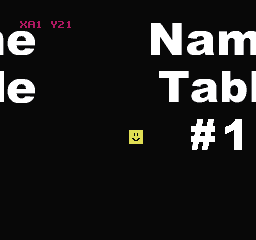
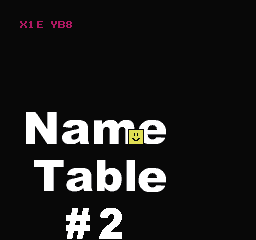
This is good for sideways scrolling. If you scroll past the right screen, it will wrap back to the left. If you want a level that’s bigger than 2 screens wide, you have to change BG tiles as you go.

(The numbers on the screen are sprites. They don’t scroll with the background.)

10_scroll_h

https://github.com/nesdoug/10_Scroll_H/blob/master/scroll_h.c

https://github.com/nesdoug/10_Scroll_H

.

Vertical scrolling (Horizontal mirroring)

is basically the same, except the right 2 nametables are copies of the left 2

A A
C C

This is good for vertical scrolling.

11_scroll_v

https://github.com/nesdoug/11_Scroll_V/blob/master/scroll_v.c

https://github.com/nesdoug/11_Scroll_V

.

There is also 4 screen mode, which almost zero games used. It required a special cartridge with an extra RAM chip. Gauntlet and Rad Racer II, for example, use it.

This would be good for all direction scrolling. Most games just used the standard 2 screen layout, and had glitchy tiles at the edges. Old TVs tended to cut off the edges, so it usually wasn’t too noticeable.

There are special boards (mapper) that can change the mirroring layout. See Metroid, and it sometimes scrolls horizontally, and sometimes it scrolls vertically. Instead of being hardwired to one layout, it can alternate between them. But, that is a more advanced topic.

08. BG collisions

Well, bg is a little different than sprites. We can’t read the bytes in the PPU, not easily. So let’s have a map of all the solid blocks in the room. Having each block 16×16 simplifies everything, and you can stuff the entire room into a 240 byte array. X from 0 to 15, Y from 0 to 14. I copied the array to the RAM, in case we want to make the BG destructable. (Which I will demonstrate a little later). Here’s what the array might look like…

const unsigned char c2[]={
0,0,0,0,0,0,0,0,0,0,0,0,0,0,0,0,
0,0,0,0,0,0,0,0,0,0,0,0,0,0,0,0,
0,0,0,0,0,0,0,0,0,0,0,0,0,0,0,0,
0,0,0,0,0,1,0,0,1,0,0,0,0,0,0,0,
0,0,0,0,0,1,0,0,1,0,0,0,0,0,0,0,
0,0,0,0,0,1,0,0,1,0,0,0,0,0,0,0,
0,0,0,0,0,0,0,0,0,0,0,0,0,0,0,0,
0,0,0,1,0,0,0,0,0,0,1,0,0,0,0,0,
0,0,0,0,1,0,0,0,0,1,0,0,0,0,0,0,
0,0,0,0,0,1,1,1,1,0,0,0,0,0,0,0,
0,0,0,0,0,0,0,0,0,0,0,0,0,0,0,0,
0,0,0,0,0,0,0,0,0,0,0,0,0,0,0,0,
0,0,0,0,0,0,0,0,0,0,0,0,0,0,0,0,
0,0,0,0,0,0,0,0,0,0,0,0,0,0,0,0,
0,0,0,0,0,0,0,0,0,0,0,0,0,0,0,0
};

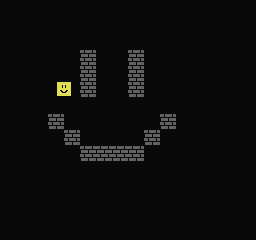
And the 1’s here match the blocks in the game.

09_collide

To check collision, you just need to mask the low nibbles of X and Y (& 0xf0) and combine them YX… (X >> 4) + (Y & 0xf0). and check that byte in the array. 1 = brick, 0 = nothing.

For sprites, I have been checking 4 points, each corner, and setting L R U D variables if collision, and eject as needed. First I do an X move, check collision points, and eject X if hit. Then I do a Y move, check collision, and eject Y if hit. See bg_collision() below.

This code is simplified, because X and Y moves are fixed at 1 pixel per frame. A little later, I will modify this so we can test variable speeds. 1 pixel per frame is a bit slow, and might be dull gameplay.

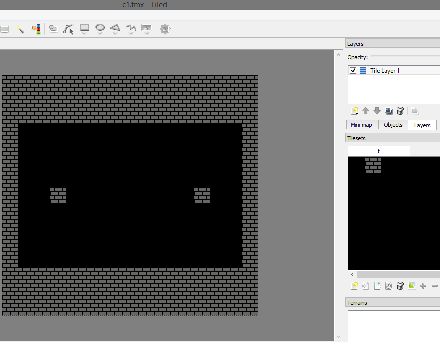
I have been using Tiled to make level data, to use for the collision map. It’s simple to use, and it can export a csv file, which is easy to make into a C array. But, it can’t import NES style .chr file, so I had to make a picture of all the types of blocks. This is very easy, since we have only 2 types, blank and block.

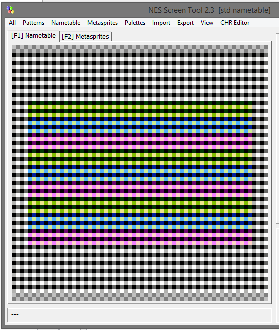
First I make tiles in NES Screen Tool. Then I draw the 2×2 blocks. It looks kind of dumb here, because I only have 2 types, but when have a more detailed game with dozens of blocks, it will start to make more sense. There isn’t a way to export a picture of the nametable, so I just do a screen capture, and crop it in GIMP, save as metatile.png.

Now, import it as a tileset to Tiled. The dimensions are 32×32 per tile, because NES screen tool doubles the pixels. Now design the levels, and export CSV.

09_Tiled

It’s a piece of cake to turn a CSV file into a C array, but I made a python 3 script anyway to automate it. CSV2C.py. Then I import the C arrays into my code, and have an array of pointers to each array.

#include “CSV/c1.c”
#include “CSV/c2.c”
#include “CSV/c3.c”
#include “CSV/c4.c”

const unsigned char * const All_Collision_Maps[] = {c1,c2,c3,c4};

Now, I wrote some code to print the array as a block of 2×2 tiles to the screen with a big loop and some vram_put() statements. vram_put() needs the screen to be off. Left to right ppu writes wrap around to the next line. So, you don’t have to change the address to do even the entire screen.

And I have it so that, if you press “Start” it loads a new collision map, and draws it to the screen.

When you (for example) press the right button, it adds 1 to the X position. It then checks 4 points of collision, and if the ones on the right are 1 in the collision map, it ejects (subtract 1 from the X position).

So, test it out. Bump into the walls. Collisions work. Press start and the background changes. Collisions still work, because it loaded a new collision map loaded to the RAM.

Note, I shifted the whole screen down 1 by scroll. Y scroll =  ff (-1). Sprites always show up 1 pixel low, so shifting the bg down 1 lines them up.

https://github.com/nesdoug/09_BG_Collide/blob/master/collide.c

https://github.com/nesdoug/09_BG_Collide

The loading code isn’t very good, because it can only draw 1 kind of tile block, and it never changes the attribute table. I’m going to cover a much better loading system (see page on metatiles), a bit later, but first I wanted to talk about scrolling.

07. Controllers

There are 2 controller ports on the NES. You can read them anytime, using ports 4016 and 4017. Behind the scenes, it is strobing the 4016 port off and on, and then reading the buttons, 1 button at a time, times 8 reads, and then shifting them into a variable.

Neslib, use this function.

pad1 = pad_poll(0) to read controller 1.

pad2 = pad_poll(1) to read controller 2.

pad_state(0) or pad_state(1) if you forgot the value, and want to get it again without re-reading the controllers.

pad_trigger() gets the newly pressed buttons. I don’t use it. If you did, the order would be pad_trigger() and then pad_state(), since trigger runs the pad_poll() function. You don’t want to poll the controllers more than once per frame. You could read the controller like this…

pad1_new = pad_trigger(0);

pad1 = pad_state(0);

I wrote a function get_pad_new(), and it returns the PAD_STATET variable, which is the same thing that pad_trigger() returned… the new button presses. You need to run pad_poll() first, and then get_pad_new(). Generally, you would want both values so you could test buttons held down (say for running left and right) and buttons newly pressed (for jumping or pausing the game). This is what I do…

pad1 = pad_poll(0);

pad1_new = get_pad_new(0);

We use pad1_new for checking the pause button. We don’t want it to continuously pause and unpause if you hold Start down. It only change modes if you let go of the Start button and press it once again.

pad1 is a char (8 bit), basically a bit field of 8 buttons. And we have to apply bit masks to get the individual button presses.

if(pad1_new & PAD_START){
	Pause();
}

.

Sprite vs. sprite collisions.

I have each sprite controlled by a different controller. When they collide, I’m changing the background color.

if (collision){
	pal_col(0,0x30); 
}

And, I wrote a funtion that can test any sprite objects to see if they are touching. But you have to pass 2 structs (or arrays) of 4 bytes each, where the byte order is (x, y, width, height). I made this function take in 2 void pointers, because I wanted to be able to use different types of structs in the future. At least, that was the plan.

Here’s the example in the code…

collision = check_collision(&BoxGuy1, &BoxGuy2);

I suppose we could have put this inside the if condition, if you like.

if(check_collision(&BoxGuy1, &BoxGuy2))

The ASM funtion is an optimized version of this code…

if((obj1_right >= obj2_left) &&

(obj2_right >= obj1_left) &&

(obj1_bottom >= obj2_top) &&

(obj2_bottom >= obj1_top)) return 1;

else return 0;

And we know it’s working, because the screen turns white when they touch. The code breaks a bit when one object is half off the edge of the screen. It’s working well enough for my needs.

08_PadsPads2b

https://github.com/nesdoug/08_Pads/blob/master/Pads.c

https://github.com/nesdoug/08_Pads

06. Sprites

What’s a sprite? A sprite is a tile that can be moved freely all over the screen. Sprites are usually 8×8, but they can also be 8×16 (a little more complicated). I will be using 8×8 examples. Sprites are defined by the 256 bytes in the OAM part of the PPU. There are 64 sprites. That’s 4 bytes per sprite.

But 8×8 is so small. How do we make Mario so big? We combine multiple sprites to move together on the screen. This is called a metasprite. Look below. Small Mario is made up of 4 sprites, and large Mario is made up of 8 sprites.

Mario2

Sprites on the NES have an annoying limitation. 8 sprites per horizontal line. That’s all you get. Any more than that, and then next sprite will disappear. The order of the sprites in the OAM determines which 8 will show and which disappear. First in the OAM (the 0th sprite) has top priority. It will show up in front of the others and will count first toward the 8 sprite limit.

You might have seen sprites flickering in NES games. To avoid disappearing sprites, it is common to rotate the order of the sprites in the OAM, so that the sprite that disappears alternates, creating flickering. That’s better than an invisible sprite, I suppose.

Another oddity, is that sprites are always shifted down 1 pixel. If you put a sprite at Y = 0, the top of the sprite won’t appear until the next line down. Look at Mario’s feet, and you see that he is 1 pixel into the floor. This might look ok for platform games, but a top down game might look better with sprites aligned to the background. We can do this easily by shifting the BG down 1 pixel.

Sprites can go anywhere on the screen. However, they are not very good at moving smoothly off the left side of the screen. There is an option (PPU Mask 2001 bits xxxx x11x), that if zero, you turn off the left 8 pixels of the screen, and THEN you can smoothly move off the left side of the screen.

Any sprite Y position >= $ef is off the screen. When you call the function oam_clear() or oam_hide_rest(), it puts the sprites Y at $ff, which is below the screen. Sprites don’t wrap around.

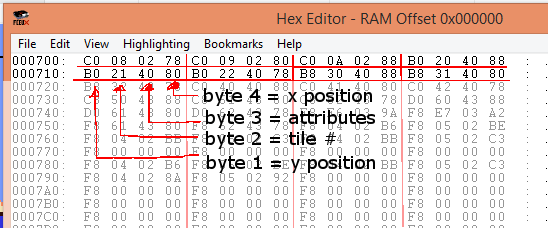
So… there are 4 bytes for sprites. Y, tile #, attributes, and X.

Attributes (copied from the wiki)

76543210
||||||||
||||||++- Palette (4 to 7) of sprite
|||+++--- Unimplemented
||+------ Priority (0: in front of background; 1: behind background)
|+------- Flip sprite horizontally
+-------- Flip sprite vertically

spritetable

So how do we make sprites appear? Like writing to the background, you can only write to the sprites during v-blank, which is handled by neslib in the nmi code. The standard way to do this, is to set aside a 256 byte buffer, aligned exactly to xx00. The picture above is at $700, but neslib usually uses $200 (defined in crt0.s as OAM_BUF). The nmi code will do a quick OAM DMA and copy all the sprites from the buffer to the OAM.

Since we are using a buffer, you should be able to write to the buffer at any time. I prefer to clear the buffer every frame, and rebuild it from scratch every frame.

oam_clear(); //Clear the sprite buffer.

sprid = 0; //Set the index to the buffer to zero.

sprid = oam_spr(x,y,tile,attribute,old sprid); //Push 1 sprite to the buffer.

sprid = oam_meta_spr(x,y,sprid,*data); //Push 1 metasprite to the buffer.

NOTE: I changed all this 9/17/2019, and removed sprid from my code to speed the functions up a bit. Now it looks like this.

oam_clear(); //Clear the sprite buffer.

oam_spr(x,y,tile,attribute); //Push 1 sprite to the buffer.

oam_meta_spr(x,y,*data); //Push 1 metasprite to the buffer.

Fewer variables pushed to the c stack = faster.

Also added were these functions, just in case you need to access the sprid.

oam_set(); // manually set the index to the sprite buffer

oam_get(); // returns SPRID, the current index to the sprite buffer

And to make it all work, I had to add an internal variable in crt0.s called SPRID.


When I made the graphics file, I put the sprite graphics in the second half. We have to remember to tell neslib that we want to use the second half for sprites…

bank_spr(1);

And make sure to define a palette for both BG and sprites.

Ok, so, how do I make a metasprite? NES Screen Tool has a tool for making metasprites. I find it a bit difficult to use. Sometimes I just copy and paste a definition from a same sized metasprite (and change the tile #s). But, if you use NES Screen Tool, you can “put single metasprite to clipboard as C” and then paste it into the code. Then you can pass that to the oam_meta_spr() function.

oam_meta_spr(x,y, * data).

The sprite definitions used by neslib (and NES Screen Tool) are out of order. It goes x,y,tile,attribute, as opposed to the NES’s actual byte order (y,tile,attribute,x). Keep that in mind, if you want to just retype it by hand, like I sometimes do.

If you want to have a metasprite that changes direction (and flips horizontally), then you should make 2 separate metasprites, one for each direction.

One limitation. None of these functions keep track of how many sprites are in the buffer. You could easily put in too many, and overwrite the ones in the beginning of the buffer.

This example uses 1 basic sprite and 2 metasprites, and moves then down 1 pixel per frame.

07_Sprites

https://github.com/nesdoug/07_Sprites/blob/master/Sprites.c

https://github.com/nesdoug/07_Sprites


Oh, one more thing. If you are transitioning from one part of a game to another, and you turn off the screen, make sure you clear the sprites before you turn the screen back on so you don’t have 1 frame of junk sprites left on the screen.


05. Palettes

A little more about the NES palette.

nes-color-palette2

There are 64 choices (0-$3f), but many of those are black. The neslib forces you to use $0f for black and $30 for white. Don’t use the xD colors, especially $0D (it glitches some TVs, see YouTube videos of “Immortal” glitched title screen). Well, you can’t anyway, since the neslib converts it to $0f.

The background uses the PPU addresses $3f00-3f0f for palettes.

The sprites use PPU addresses $3f10-3f1f for palettes.

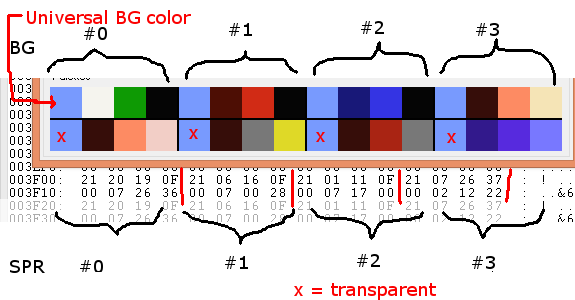
Color index #0 (at PPU address $3f00) is the universal BG color. All 4 of the bg palettes will reuse that same color as their 0th color.

There are 4 Background palettes.

U = universal color
U123 U123 U123 U123
That makes 13 unique BG colors on screen.

The 0 color index for each Sprite palette is transparent.

There are 4 Sprite palettes.
x = transparent
x123 x123 x123 x123
That makes 12 unique Sprite colors on screen.

colorpalettes

So far, we have been working with only 1 palette (4 colors), so let’s make something using all the bg palettes.

You can change an entire palette (32 bytes) with pal_all(), or change the 16 byte bg palette with pal_bg() and the 16 byte sprite palette with pal_spr(). Just pass it an array of 16 bytes. And, you can change just 1 color with pal_col(index, color), where index is 0-$1f. There will be an example of pal_col in the next page (sprite collisions).

Although the palette is in the PPU, and usually it can’t be written while the screen is on… all the neslib palette functions write to a buffer, which is copied to the PPU only during v-blank (in the nmi code). So, feel free to use these functions anytime, with the screen on or off.

Background Attribute Table

In the PPU, at the end of each nametable (tilemap), is the attribute table. For map#0, that’s $23c0-$23ff. The only “attribute” they can have is palette selection, so, you can think of it as the palette table.

A nametable only has 64 bytes to work with for palette choices, so that makes an 8×8 grid. Each byte represents a 32×32 pixel chunk of the BG. Each byte in the attribute table is further divided into 2 bit segments, and each 2 bits represents a 16×16 pixel chunk of the BG.

ATtable

So, each tile doesn’t get its own palette choice. You can only define a palette choice for a 2×2 block of tiles.

Try NES Screen Tool and draw some simple graphics and place them on the map. Now unclick “Apply tiles” and choose a different palette and draw on the tilemap. It will only change the palette instead of applying tiles. You can easily see the limitations of the attribute table. You can also highlight the attribute grid by clicking on the 2x grid button.

Most games just design their games in blocks of 16×16 pixels. I do this too.

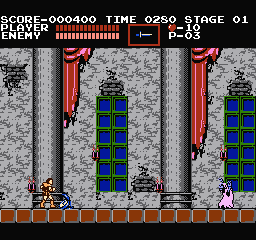
castlevania_1

Notice how the floor blocks and the window blocks are exactly 16×16 pixels. The columns are exactly 32 pixels wide. The curtain area is exactly 32 pixels wide.

Having multiple palettes to choose from extends our tileset, since we can reuse the same tiles for different objects by changing its palette. Look at the clouds and the bushes. They are using the same tiles, but they are colored differently because they are assigned a different palette.

SMB_Palette

Again, 1 attribute byte is further divided into 2 bits per block. So, the layout of an attribute byte go like this, bitwise…

if you look at the byte in binary, these bits represent tiles like this… DDCCBBAA

AA BB
AA BB
CC DD
CC DD

So, AA is the top left tiles of that block. BB is the top right, etc. So if bits DD goes 00, the bottom right tiles in that block will use the #0 palette. If it goes 01, it will use the #1 palette, etc.

So, I made a background in NES screen tool. The entire picture was gray, using palette #0, but the code is writing to the Attribute Table with fills, changing the palette choices. Notice I used get_at_addr(0,0,0) to calculate an address in the attribute table. Then I used vram_fill() to set the attribute bytes.

get_at_addr(char nt, char x, char y); — x and y are pixel positions 0-255

vram_fill(unsigned char n,unsigned int len); — n is the fill value

Palette 0 = grays, 1 = blues, 2 = reds, 3 = greens.

06_color

The attribute table is fairly hard to modify mid game…involving bit shifting and masking. You would keep a full copy of the attribute table as an array in the RAM, and modify 2 bits at a time, and copy the byte to the correct PPU address after it is modified. Many games just avoid changing it, except as part of the scrolling engine. You could design the game as 32×32 blocks, and you would just change a full byte, rather than worry about bit shifting.

I wrote 1 vram_put() statement to change 1 attribute byte, so you can see it’s size and abilities. See that multi colored block on the lower left?

vram_put(0xe4); // push 1 byte (in binary, that’s 11 10 01 00)

For now, if make the background in NES screen tool, just save the nametable with the attribute bytes as a compressed rle, and it will copy those when your game loads them.

https://github.com/nesdoug/06_Color/blob/master/color.c

https://github.com/nesdoug/06_Color

.

Part of my library is a metatile system, which can handle attribute bytes for you.
For another time.

04. Full background

Writing a full screen with an RLE compressed file.

Reduce the size of the image to 256×240 or maybe 128×128, and then change the mode to 4 color indexed.

From there, you can cut and paste into YY-CHR.

I think you get slightly better results first converting to grayscale, then to mode/indexed (4 colors).

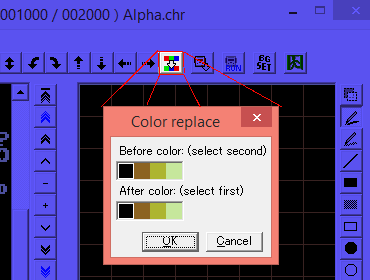
Sometimes (frequently) YY-CHR would get the index in the wrong order and you would have to use the color replace tool to get it correct. Then save as .chr, which you can open in NESST.

YYchr

BUT — I decided to make my own graphics conversion tool, called NESIFIER.  It can convert an image (.png .jpg .bmp or .gif) to NES format — nametable, .chr graphics, and palette. You can now (with version 2.2) export as an 8-bit indexed BMP, which is the format the NES Screen Tool uses to import a file. This could be useful if you have too many unique tiles (use the lossy import option).

https://github.com/nesdoug/NESIFIER

Originally, I made a 256×240 image. But, I had too many unique tiles… So, in GIMP I resized the image smaller (about 160×160), but then padded the canvas size to 256×240.

girl5

I saved as .png. Open that in NESIFIER, manually selected 4 colors, and dither settings (Floyd-Steinberg, 10) and press “convert”. This is the result.

NESIFIER

Notice that the number to the left of “Tiles” is 254. Good. We need it 255 or less. Then I save the tiles “save final CHR”, and save the tilemap “save nametable”, and save the palette “Palette/Save NES 16 bytes”.

You might have to play with the dither settings or dither pattern to get better results. Note that higher dither value looks better, but tends to create more unique tiles.

Open NES Screen Tool and load all these files.

With NES Screen Tool I saved the tilemap , “Nametable/Save Nametable and Attributes/RLE packed as C header .h”. Now we can import it into the C code, with #include “NES_ST/Girl5.h”.

A full nametable is 1024 bytes. You don’t want to leave nametables uncompressed… you would very quickly run out of space. The RLE version is compressed to 339 bytes. The game code needs to decompress this Girl5.h file.

We can’t do this with the screen on, so turn it off, then set a starting address, and call the rle function.

ppu_off();

vram_adr(NAMETABLE_A); // set the destination address, the top left of the screen

vram_unrle(Girl5); // decompress our rle file, copy to the screen. Girl5 is the name of the char array in the Girl5.h file.

ppu_on_all();

So far, I’ve forgotten to mention the palette. NES Screen Tool can copy the palette to the clipboard, which I pasted into the C code an an array of chars. pal_bg() sets the palette for the Background. The palette itself is just a byte array of 16 bytes. We pass the name of the array to pal_bg(palette_name) to copy it to the NES palette.

fullbg

https://github.com/nesdoug/04_FullBG/blob/master/fullBG.c

https://github.com/nesdoug/04_FullBG

.

.

Fade In / Fade Out

neslib makes it easy to change the brightness of the screen. You can do this with pal_bright(), using a value between 0 (black) and 8 (white). 4 = normal.

I borrowed a function from Shiru’s “Chase” game, and it’s very easy to use.

pal_fade_to(0,4); // fade from black to normal

pal_fade_to(4,0); // fade from normal to black

And if you run the fade.nes file, you see that it fades in and out in an infinite loop. Fading could be used for transitions, like from the title to the game, or from level to level.

https://github.com/nesdoug/05_Fade/blob/master/fade.c

https://github.com/nesdoug/05_Fade

.

Side Note –

With the NESIFIER tool, you can also save tiles and tilemap as a DZ4 file, which is a compression format that I came up with. I haven’t integrated that into the neslib / nesdoug code yet, so you can just skip it and use the RLE format that came with neslib originally. But, DZ4 would work similarly. It can sometimes get better compression than the RLE format.

There are lots of compression tools out there. NES Screen Tool RLE is good enough for now.

03. VRAM buffer

I wrote some support functions for filling a VRAM update buffer. This is an automatic system where you write changes to the screen in a buffer. The system then copies these changes to the PPU during the v-blank period. It runs smoothly without ever having to turn the screen off.

I’m using some behind the scenes code, and I’ve defined a VRAM_BUF in crt0.s to be at $700. Notice, that this technically shares the 700-7ff space with the C stack. They could potentially collide. If you are worried about this, put the VRAM buffer at 600-6ff. But, you shouldn’t be putting more than 74 bytes of writes to the VRAM buffer, so this should never get bigger than 77 bytes. The C stack grows down from 7ff. And, the C stack only needs a dozen or so bytes, if you program like I do, and don’t use local variables, and only pass a few at a time to a function, and don’t use recursion. If you do those things, you’ll be fine. But, I thought I should let you know.

To use my system, you need to point some internal pointer to my system. This requires no passed value, that address is defined by VRAM_BUF in crt0.s .

set_vram_buffer()

This is kind of like set_vram_update(). To point the PPU update to another data set, you would do it with set_vram_update(&data), and to turn it off you can do set_vram_update(NULL). Generally, you only need to set_vram_buffer() once, at the top of the main() function, and never turn it off.

.

You can buffer a single tile with

one_vram_buffer(tile #, ppu_address)

You just need the tile number and an address. NTADR_A(x,y) is a macro that can get us the nametable address from a tile position. X and Y are tile positions – X from 0 to 31, Y from 0 to 29. There are also NTADR_B, NTADR_C, NTADR_D macros, one for each of the 4 possible nametables.

You could also use a function I wrote that calculates the address at run time, using pixel values 0-255 X, 0-239 Y. NT is which nametable, 0-3.

get_ppu_addr(char nt, char x, char y);

.

If you want to send more than 1 byte to the PPU, use

multi_vram_buffer_horz(const char * data, unsigned char len, int ppu_address);

or

multi_vram_buffer_vert(const char * data, unsigned char len, int ppu_address);

Horz goes left to right. Vert goes top to bottom.

.

So the address and data and an eof are copied to the vram buffer. One of the pluses here is that the eof is auto adjusted as you keep writing to the buffer.

One warning, though. It doesn’t keep track of how big you make the buffer, and if you aren’t careful, you could put too much in, and bad things might happen. (garbled graphics, misaligned screens, or crashed games.)

I wrote multiple variations of how you could write to the screen, and this all is transferred in 1 v-blank. This is pretty much the maximum number of changes you can do in one frame. That’s around 40-50 tiles worth of data transferred. If it’s one contiguous write, maybe 70 tiles. (On a PAL NES, you could do more, as the v-blank period is longer).

03_hello3

https://github.com/nesdoug/03_Hello3/blob/master/hello3.c

https://github.com/nesdoug/03_Hello3

02. What’s a v-blank?

Writing to the screen while the picture is on.

If you used the vram_adr() or vram_put() functions while the screen is ON, there is 92% chance that you will write garbage on the screen and misalign the scroll.

Why this happens, basically, the PPU can only do 1 thing at a time, and while the screen is running, it is busy reading data from the VRAM and sending it to output to your TV, 92% of the time.

It goes line by line, pixel by pixel, calculating which color to write for each dot. Here’s a nice slow motion camera watching SMB1 (at about 2:14).

Once it reaches the bottom, it waits a short period. That’s called the vertical blank period (v-blank). This is the only time the PPU is not busy, and we can safely write tiles to the screen during this time (not too many).

Also, we have turned NMI interrupts on (this bit in register 2000, 1xxx xxxx, somewhere in the startup code in crt0.s.). At the beginning of v-blank, the PPU generates a signal (NMI) which halts CPU execution, and it jumps to the nmi code in neslib.s, and executes that during the v-blank period.

We know that it will go to the nmi code (asm, in neslib.s) during this period, so we know that it is safe to write to the PPU during this time (well, a few bytes). We can use this to our advantage, because if we are playing a game, and you turn the screen off, write to the screen, then turn it back on…the screen will flicker black during that time, which is a bit annoying. So, we want to keep the screen on, and we want to write to the PPU during v-blank.

So, while the PPU is busy drawing the screen, we will write to a buffer. Then when we call ppu_wait_nmi() it will set a flag that says “our data is ready to transfer” and it will sit and wait until v-blank. The nmi code will transfer it to the PPU automatically.

Before all that, you need to set_vram_update(address of data), to pass the address of our data or buffer to the neslib.

I have made some examples of data that the automated system can read. You can either send it 1 byte, or a contiguous set of data (tiles).

SINGLE BYTE
address high byte
address low byte
data (tile #)
EOF

MSB(NTADR_A(18,5)),
LSB(NTADR_A(18,5)),
‘B’,
NT_UPD_EOF

.

CONTIGUOUS DATA
address high byte + update horizontal
address low byte
# of bytes
data
EOF

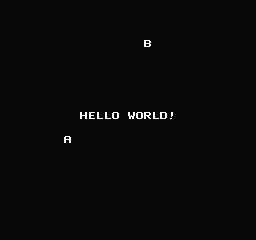
MSB(NTADR_A(10,14))|NT_UPD_HORZ,
LSB(NTADR_A(10,14)),
12, // length of write
‘H’,
‘E’,
‘L’,
‘L’,
‘O’,
‘ ‘,
‘W’,
‘O’,
‘R’,
‘L’,
‘D’,
‘!’,
NT_UPD_EOF

Note (optional) to update vertically, replace NT_UPD_HORZ with NT_UPD_VERT, it will draw top to bottom instead of left to right. Left to right wraps to the next line. Top to bottom does not wrap, and you probably don’t want to go past the bottom tile of a screen.

You can stack multiple writes into one frame, if you strip the EOF between them. See hello2.c below. An empty buffer would be just the EOF (= 0xff). The system needs to see a 0xff or it will keep pushing tiles infinitely.

There is a limit as to how many bytes you can buffer…

About 31 single bytes, or 74 contiguous bytes, or mixed, somewhere in between. But this is fuzzy, you should err on less than this. If you never adjust the palette, you can get more (maybe 40 single, 97 contiguous) safely per frame.

Note, the same bytes will transfer to the PPU over and over, every frame, until the buffer changes. The user won’t see it, but it’s a waste of CPU time.

You can turn it off with
set_vram_update (NULL)

.

02_hello2

https://github.com/nesdoug/02_Hello2/blob/master/hello2.c

https://github.com/nesdoug/02_Hello2

.

I’ve noticed that nearly nobody is using this function, nor a VRAM buffer. Most people are using vram_put() or something similar.

I think it’s because it’s awkward to construct a VRAM update on the fly. So, I wrote a whole support library to make this a piece of cake.

Next time…

01. Our first program

The most basic thing you can do is writing to the bg while the screen is off.

ppu_off();
vram_adr(address);
vram_put(tile);
ppu_on_all();

Let’s go over these functions.

ppu_off(); to turn the screen off (which resets the bits xxx1 1xxx of the PPU mask register 2001 to zero.) This frees the PPU to do whatever you want.

Then, set an address to set the start position for writing.

vram_adr(NTADR_A(x,y));

This pushes 2 bytes to ppu address register 2006, first the high byte and then the low byte. It sets a location on the screen for writing.

We want to write to the #0 nametable, which is between $2000 and $23ff in the PPUs RAM. Nametable just means tilemap, or background screen.

This little macro will generate a correct address at compile time.

#define NTADR_A(x,y) (NAMETABLE_A|(((y)<<5)|(x)))

X and Y are tile positions. X from 0 to 31, Y from 0 to 29.

Then we can start sending data to the PPU DATA register $2007, 1 byte at a time.

The most obvious way to do that is with vram_put(tile) function. Just loop until all the data has been sent. If you want to fill a large area of the screen with the same tile, you could use vram_fill(tile, length).

The NES PPU will automatically increment the PPU address as each data byte is sent. So, each byte of data will go in 1 to the right of the last one, wrapping around to the next line.

Then turn the screen on (which flips the xxx1 1xxx bits ON in register 2001).

ppu_on_all();

What we are doing is putting values on a tile map, which tells the NES which tiles to draw on the screen. Like arranging puzzle pieces on a grid. I made the tileset to look like letters. I positioned them the same as ASCII map does, so I can call them like ‘A’ or “ABC” and it matches the graphics.

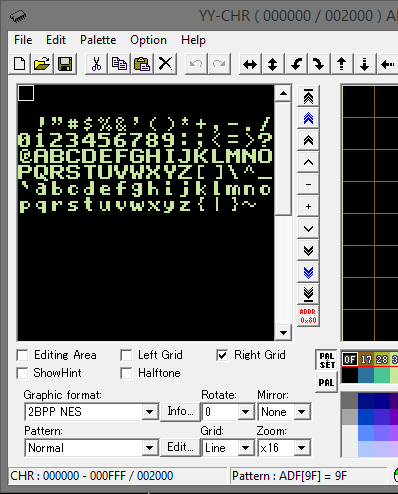
Open the Alpha.chr file in YY-CHR to view it. Each tile is 8×8 pixels.

01_YY

At the end of crt0.s I included the Alpha.chr file and put in a “CHR” segment, which the linker is directed to put at the end of the file. Our linker configuration is nrom_32k_vert.cfg, which makes sure that the file is organized in a way that emulators will know how to run it.

01_hello

See hello.c for our code.

https://github.com/nesdoug/01_Hello/blob/master/hello.c

.

https://github.com/nesdoug/01_Hello

Download the source code inside the cc65 main folder. compile.bat sets a relative path to cc65 home that is up one directory. set CC65_HOME=..\

So it should look like /cc65/01_Hello/

Or, you could change the path to cc65 home, if you want to put your dev code elsewhere.

.

On a sidenote. When I was first starting programming NES games in ASM, I tried to write to the screen, and was confused because what I wrote would only show up in the upper left of the screen. Due to the strange way the PPU works, writing an address (2006) overwrites the scroll registers (2005). After writing to the screen, it is important to write to 2000 once and 2005 twice (or 2006 twice and 2005 twice) to realign the screen.

In many commercial games you will see this after a write to the PPU…

lda #0
sta $2006
sta $2006
sta $2005
sta $2005

neslib does this automatically in the background.  If you look near the bottom of the nmi code in neslib.s, you see it does exactly what I described, just before the screen comes back on.

lda #0
sta PPU_ADDR ;2006
sta PPU_ADDR ;2006

lda <SCROLL_X
sta PPU_SCROLL ;2005
lda <SCROLL_Y
sta PPU_SCROLL ;2005

lda <PPU_CTRL_VAR
sta PPU_CTRL ;2000

The 2000 write sets the proper nametable.

How cc65 works

cc65 is command line program. You will write your code in a text editor, and save it. Then you would open a command prompt (terminal) and compile the program by tying in a series of instructions. There are 3 apps we are interested in — cc65 (the compiler), ca65 (the assembler), and ld65 (the linker). I wrote a batch file (compile.bat) to automate the process. (I later added a makefile, which does the same thing… for Linux users).

You should have downloaded cc65 from here

http://cc65.github.io/cc65/

First, you will write your source code in C (with a text editor). cc65 will compile it into 6502 assembly code. Then ca65 will assemble it into an object file. Then ld65 will link your object files (using a configuration file .cfg) into a completed .nes file. All these steps will be written in the batch file, so in the end, you will be double clicking on a .bat file to do all these steps for you. Here is an example.

@echo off
set name="hello"
set path=%path%;..\bin\
set CC65_HOME=..\

cc65 -Oirs %name%.c --add-source
ca65 crt0.s
ca65 %name%.s -g
ld65 -C nrom_32k_vert.cfg -o %name%.nes crt0.o %name%.o nes.lib -Ln labels.txt

del *.o
move /Y labels.txt BUILD\ 
move /Y %name%.s BUILD\ 
move /Y %name%.nes BUILD\
pause
BUILD\%name%.nes

Quick explanation…you would edit the name=”” to match your .c filename. Anywhere there is a %name% it will replace it with the actual filename. Then, it runs the cc65 (compiler) and ca65 (assembler) and ld65 (linker) programs. Then, it deletes object files and moves the output into a BUILD folder. The last line tries to run the final .nes file.

I tried to make this as pain free as possible, so I “#include” all the C source files into one .c file and “.include” or “.incbin” all assembly source files in crt0.s. The only thing you need to change in the .bat file is the “name” of the main .c file (if it changes).

More about cc65…

The 6502 processor that runs the NES is an 8 bit system. It doesn’t have an easy way to access variables larger than 8 bit, so it is preferred to use ‘unsigned char’ for most variables. Addresses are 16 bit, but nearly everything else is processed 8 bit. And, the only math it knows is adding, subtraction, and bit shifting for some multiplication/division (x 2 is the same as << 1).

You may have to write your C code a bit differently, to get it to run smoothly.

1. Most variables should be defined as unsigned char (8 bit, assumed to have a value 0-255).
2. Everything is global (or static local)
3. I also try to avoid/reduce the number of values passed to a function*

*return values are ok, they are passed via registers

The main slowdown for C code is moving things back and forth from the C stack. Local variables and passed variables use the C stack, which can be up to 5x slower than a global variable. The alternative to a function argument is to store the values to temporary global variables, just before the function call. This is the kind of thing that could easily cause bugs, so be very careful.

4. use ++g instead of g++

cc65 doesn’t optimize very well. It uses “inc g” for ++g, but always uses “lda g, clc, adc #1, sta g” for the post-increment (4x longer). So if you want to do this…
z = g++;

you should instead do…
z = g;
++g;

5. don’t use anything that requires a heap. malloc() and free(), etc.

Here’s some more suggestions for cc65 coding…

http://www.cc65.org/doc/coding.html

.

Or… you can just write the code the way you are used to, and worry about optimization if things start to run too slowly.

.

I’m using a slightly different version of neslib that Shiru originally wrote. There are many different version floating around. Such as this fork…

https://github.com/clbr/neslib

and you could cut and paste some of the alternate functions (both .c and .s / .sinc code) into the version used on my code, if you want to use them.

.

I have been putting each project folder directly inside the main cc65 folder. The relative path in the batch file will go up one folder to look for the bin folder holding all the .exe files. If you have problems, you can change the path to the bin folder from relative to an absolute path in the compile.bat file… or perhaps you can put the cc65/bin folder in “environmental variables” so that your system always knows where the cc65 program is.