Sprites

SNES programming tutorial. Example 5.

https://github.com/nesdoug/SNES_05

Sprites are the graphic objects that can move around the screen. Nearly all characters are made of sprites… Mario, Link, Megaman, etc. The OAM RAM controls how each sprites appear.

Mario

You will notice that Mario is made of 2 16×16 sprites. It is common to use more than 1 sprite for a character. Rex is also made of 2 16×16 sprites, with the lower sprite several pixels to the right of the top one. You can also layer sprites on top of each other, but with 15 colors to choose from, you shouldn’t have to.

You could increase the large sprite size to 32×32, but that would end up wasting more VRAM space on blank spaces. 8×8 and 16×16 are more common. I call it a “metasprite” when it is a collection of multiple sprites to make up 1 character. The SPEZ sprite editor I wrote saves these as tables of numbers HOWEVER I didn’t do that this time. This time I manually typed the sprite values in main.asm at the Sprites: label. In SPEZ, I saved the tiles and palette, which we .incbin at the bottom of main.asm.

https://github.com/nesdoug/SPEZ

You may prefer to draw your sprites in another tool, and import those images into SPEZ.

spez

OAM

The official docs call sprites “objects”. You need to write data to the OAM RAM to get them to show up on screen.

There are 2 tables in the OAM, and you need to write both of them, usually a DMA during v-blank or forced blank.

Low Table

The low table (512 bytes) is divided into 4 bytes per Sprite, with sprite #0 using bytes 0,1,2,3 and sprite , #1 using bytes 4,5,6,7, etc… up to sprite #127. 4 x 128 = 512 bytes.
Those bytes are, in this order…

byte 1 = X position

byte 2 = Y position

byte 3 = Tile #

byte 4 = attributes
.
X and Y are screen relative, in pixels (for the top left of the sprite).

Attributes

vhoopppN
v vertical flip
h horizontal flip
oo priority
ppp palette
N 1st or 2nd set of tiles (you can have up to 512 tiles for sprites).

The High Table

There are 32 bytes in the high table for 128 sprites. That’s 2 bits per sprite, and it can be very tedious to manage. Lots of bit shifting. The bits are

sx (s upper bit, x lower bit)
s= size (small or large)
x = 9th bit for x

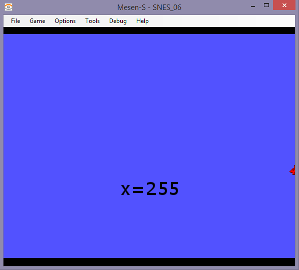
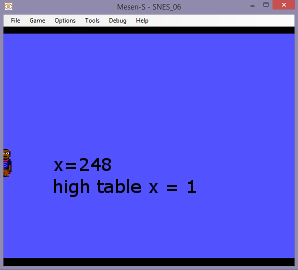
The extra X bit is so you can smoothly move a sprite off the left side of the screen. With that bit set and the regular X set to $ff, that would be like -1. Whereas, without the extra X bit, $ff would be the far right of the screen, with only 1 pixel wide showing.

How are the 2 bits put together?
Let’s say,
Sprite 0 = aa
Sprite 1 = bb
Sprite 2 = cc
Sprite 3 = dd
The the first byte of the high table is
ddccbbaa
or (dd << 6) + (cc << 4) + (bb << 2) + aa

Palettes

Sprites use the second half of the CGRAM (palette). It is 15 colors + transparency for each palette. Sprite palette #0 uses indexes 128-143. Sprite palette #1 uses indexes 144-159. And so forth.

Priorities

I like to set sprite priority to 2. That would be in front of bg layers (but behind layer 3 if it’s set as super-priority in front of everything). Higher sprite priority would be in front of sprites with lower priority.

Besides priorities…Low index sprites will go in front of higher index ones. Sprite #0 would be in front of Sprite #1. Sprite #1 would be in front of Sprite #2. Sprite #2 would be in front of Sprite #3. Etc.

There is a limit to how many sprites can fit on a horizontal line. And using larger sprites doesn’t improve that, internally it splits sprites up into 8×1 slivers, and only 32 slivers can fit on a line. The 33rd one disappears. Because of this, you could shuffle the sprites every frame. That’s a lot of sprites, so I see most games just ignore this problem, and try not to put too many sprites on each line. Space shooter games (lots of sprites on screen at once) re-order the sprites in the OAM manually every frame. Some kind of shuffling algorithm, to make sure no bullets hit you that you couldn’t see.

Caution. Don’t put sprites at X position 0x100. (with the 9th bit 1 and the regular X at 00) They will be off screen, but will somehow count towards the 32 sprites per line limit.

Clearing Sprites

If you leave the OAM zeroed, it will display sprites at X=0, Y=0, Tile=0, palette=0… and the top left of the screen would have 128 sprites on top of each other. If you just want ALL sprites off screen, you could just turn them off from the main screen ($212c). But to put an individual sprite off screen, you should put its Y value at 224 (assuming screens are left to the default 224 pixel height). This would put 8×8,16×16, and 32×32 sprites off screen, but 64×64 sprites would wrap around to the top of the screen… so maybe don’t use 64×64 sprites (or make sure to set its size to small before pushing it off screen).
.

Let’s go over the code.

Code

We need to change a few settings, first.
$2101 sets the sprite size and the location of the sprite tiles.
sssnnbbb
sss = size mode*
nn = offset for 2nd set of sprite tiles. leave it at zero, standard.
bbb = base address for the sprite tiles.
Again, the upper bit is useless. So, each b is a step of $2000.

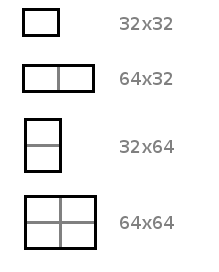
* size modes are

000 = 8×8 and 16×16 sprites
001 = 8×8 and 32×32 sprites
010 = 8×8 and 64×64 sprites
011 = 16×16 and 32×32 sprites
100 = 16×16 and 64×64 sprites
101 = 32×32 and 64×64 sprites

.

lda #2
sta OBSEL ; $2101 sprite tiles at VRAM $4000, sizes are 8×8 and 16×16

And we need to make sure sprites show up on the main screen.

lda #$10 ; sprites active
sta TM ; $212c main screen

https://wiki.superfamicom.org/sprites

https://wiki.superfamicom.org/registers

From here on out, I am going to use BUFFERS. Buffers are temporary locations in local RAM that will be copied (DMA) each frame to the actual memory (the OAM RAM)… during the v-blank period. Well, next time we will do that. In this example, we are doing it once during forced blank (2100 bit 7 set), which is also fine.

We are using a block move macro to copy from the ROM to the BUFFER.

BLOCK_MOVE 12, Sprites, OAM_BUFFER

to set up a MVN operation (to copy a block of data from the ROM to the RAM). See macros.asm for details.

And I’m writing just one byte to the high table. We only need 3 sprites in this example, so we will only need 2×3=6 bits, setting the size of each to large (16×16).

lda #$6A ;= 01 101010
sta OAM_BUFFER2

Now I will DMA both tables at once. A DMA to the OAM looks like this… [sorry, I changed the code a bit, but this is essentially the same thing.] jsr DMA_OAM will do this…

; DMA from OAM_BUFFER to the OAM RAM
ldx #$0000
stx $2102 ;OAM address

stz $4300 ; transfer mode 0 = 1 register write once
lda #4 ;$2104 oam data
sta $4301 ; destination, oam data
ldx #.loword(OAM_BUFFER)
stx $4302 ; source
lda #^OAM_BUFFER
sta $4304 ; bank
ldx #544
stx $4305 ; length
lda #1
sta $420b ; start dma, channel 0

That’s 544 bytes being copied to the $2104 (OAM DATA register) after we zeroed the OAM address registers ($2102-3). I recommend always writing to the OAM with a 544 byte DMA, once per frame (during v-blank).

The data we are transferring looks like this…

Sprites:
;4 bytes per sprite = x, y, tile #, attribute
.byte $80, $80, $00, SPR_PRIOR_2
.byte $80, $90, $20, SPR_PRIOR_2
.byte $7c, $90, $22, SPR_PRIOR_2

With the top left sprite at x = $80 and y = $80. We are using tiles 00,20,22, and all of the sprites use palette #0 and priority #2 (above BG layers).

And this is what it looks like.

example5

Try drawing your own sprite, and getting it to show up on screen.

SNES main page

Layers / Priority

SNES programming tutorial. Example 4.

https://github.com/nesdoug/SNES_04

Last time we created a background (tiles and map) and got it to show up on screen. This time we are going to add more layers.

In Mode 1, we get 3 background layers. Layer 1 and 2 are 4bpp (16 color) and Layer 3 is 2bpp (4 color). I made the graphics in GIMP and resized to 256×256 or less (the moon was 112×128, the text was 256×32).

Now I imported these into M1TE. The moon was imported while Layer 1 (4bpp) was active. The text was imported while Layer 3 (2bpp) was active. I just drew some moon tiles in blue on Layer 2 (also 4bpp).

bg1 layer 1

bg2 layer 2

bg3 layer 3

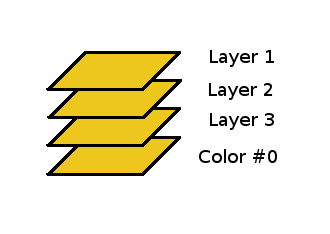
Now let’s talk about how the layers work. Normally, layer 1 is on top, then layer 2 is next, and layer 3 on the bottom. Like this.

Example4

But each tile on the map has a PRIORITY setting. Normally, this is to determine if the BG tile will go behind a sprite on the same layer, or in front of it. In mode 1, the layers go like this…

(top)
Sprites with priority 3
BG1 tiles with priority 1
BG2 tiles with priority 1
Sprites with priority 2
BG1 tiles with priority 0
BG2 tiles with priority 0
Sprites with priority 1
BG3 tiles with priority 1
Sprites with priority 0
BG3 tiles with priority 0
(bottom)

Anywhere there is color #0 on a tile, it will be transparent on that layer. Behind all the layers (if there isn’t a solid pixel on any layer) it will be filled with color #0.

Layers

However, if bit 3 of $2105 is set, BG3 will be in FRONT of everything (if the priority bit is set on the map). In M1TE, you can set all the priority bits for the whole map by checking a box.

Priority

I did that for BG3. The only difference between the picture above and below is the bit 3 of $2105 is set. (see these links for reference)

https://wiki.superfamicom.org/registers

https://wiki.superfamicom.org/backgrounds

Example4b

With $2105 d3 set and priority bits in BG3 map set, they appear on top. This can be very useful for text boxes that appear in front of everything, or a HUD / Scoreboard that you can always see. Because BG3 is only 2bpp, it won’t be very colorful, so it will be ideal for text messages.

The code for putting all this together is very similar to the previous page. The 2bpp tiles were loaded to $3000 in the VRAM with a DMA.

ldx #$3000
stx VMADDL ; set an address in the vram of $3000

lda #1
sta $4300 ; transfer mode, 2 registers 1 write
lda #$18 ; $2118
sta $4301 ; destination, vram data
ldx #.loword(Tiles2)
stx $4302 ; source
lda #^Tiles2
sta $4304 ; bank
ldx #(End_Tiles2-Tiles2)
stx $4305 ; length
lda #1
sta $420b ; start dma, channel 0

and the maps were loaded similarly with DMAs. BG2 map to $6800 and BG3 map to $7000. The maps for those layers will then be loaded to those VRAM addresses. We need to tell the PPU where our tiles and maps are.

stz BG12NBA ; $210b BG 1 and 2 TILES at $0000

lda #$03
sta BG34NBA ; $210c put BG3 TILES at VRAM address $3000

lda #$60 ; bg1 map at VRAM address $6000
sta BG1SC ; $2107

lda #$68 ; bg2 map at VRAM address $6800
sta BG2SC ; $2108

lda #$70 ; bg3 map at VRAM address $7000
sta BG3SC ; $2109

We need to make sure that all 3 layers are active on the main screen.

lda #BG_ALL_ON ;$0f
sta TM ; $212c

and that will give us this picture (same as above)

Example4

with BG3 behind everything.

When we flip bit 3… 00001000 at $2105, BG3 will show up on top (if their priority bits are set on the map). Note BG3_TOP is defined as 8.

lda #1|BG3_TOP ; mode 1, tilesize 8×8 all, layer 3 on top
sta BGMODE ; $2105

Like this.

Example4b

Each of these layers scroll independently of each other. You would adjust them with these registers. They are write twice (low then high).

$210d – BG1 Horizontal

$210e – BG1 Vertical

$210f – BG2 Horizontal

$2110 – BG2 Vertical

$2111 – BG3 Horizontal

$2112 – BG3 Vertical

(Note: not used in this example)

Maps, In Depth

All of our examples are with maps set to 32×32 tiles. (the screen is set to 224 pixels high, so you can’t see all the tiles at once). Each address in the map uses 2 bytes, since the VRAM is set up for 16 bits per address. It can be very confusing to look at in a Hex Editor (VRAM memory viewer) that show bytes, you will have to multiply x2 the VRAM address to find it in the hex editor. VRAM address $6000 is going to be found at $C000 in the emulator’s memory viewer.

Each map uses $800 bytes, but only $400 addresses (32×32 = 1024 = $400). They would be arranged like…

0,1,2,3,4… 31 =  1st row / top of screen
32,33,34,35… 63 = 2nd row
64,65,66,67… 95 = 3rd row
etc. on down to 32nd row, below the bottom of the screen

So, if you go down 1 on the map, you add 32 to the address.

Larger Maps

Maps

We could have made the map 64 tiles wide (for BG1 $2107, bit 0 = 1). If the left screen is at $6000, the right screen would be at $6400. In M1TE, you could construct each 32×32 part as a separate map.

We could have made the map 64 tiles tall (for BG1 $2107, bit 1 = 1). The upper screen at $6000 and the lower screen at $6400.

Lastly, if we made the map 64×64 (for BG1, both bits 0 and 1 set). If the first screen is at $6000, the screens would be arranged like

$6000 – $6400

$6800 – $6c00

If tiles were set to 8×8 size ($2105, called “character size”), a 64×64 map would be 512×512 pixels in size.

If tiles were set to 16×16, the same map would be 1024×1024 pixels. This should explain why we need 16 bit scrolling registers.

Tiles in the Map

So, I said that each entry in the map is 16 bits. Those bits are arranged like this…

vhopppcc cccccccc
v/h = Vertical/Horizontal flip this tile.
o = Tile priority.
ppp = Tile palette.
cc cccccccc = Tile number.

Each tileset is theoretically as big as 1024 tiles (for BG).

And, one more thing about palettes.

Palettes in Mode 1

Palette2

4bpp tiles use an entire row (left to right). If you set its palette to 0, it uses the top row (indexes 0-15). Palette 1, the next row (indexes 15-31), and so forth down to the 8th row (palette 7). That’s indexes 0 – 127 for background. Sprites would use the indexes 128 – 255 similarly. Sprites also use 4bpp tiles and 16 colors per tile.

2bpp tiles (BG3) shares the top 2 rows. Each palette only uses 4 colors, so palette 0 uses indexes 0-3, palette 1 uses index 4-7, palette 2 uses index 8-11, and palette 3 uses index 12-15… all in the top row. Palettes 4-7 similarly would use the next row. Every 0th color in each palette would be transparent. I usually reserve the top row for BG3 and the other 7 rows for BG1 and BG2.

Behind all the layers, the universal background color shows (index 0 of the palette), wherever there are transparent pixels. This is true for every layer. The black that fills most of these pictures is the background color showing through.

SNES main page

Backgrounds

SNES programming tutorial. Example 3.

https://github.com/nesdoug/SNES_03

So, this is the big lesson. There are about a dozen things we need to do just to see a picture on the screen. We need to set a video mode. We need to enable a layer on the main screen. We need to set the address for tiles. We need to set the address for a tilemap. We need to make tiles and a tilemap (and a palette). We need to copy all the things to the VRAM. And we need to turn screen brightness on (and end forced blank).

I picked a random picture of a moon. Open in GIMP, resize to 128×128. (a little later, the image looked stretched out when I got it running on my actual SNES, due to the aspect ratio of SNES pixels being about 8/7)… resize to 112×128 to fix the sideways stretching. Save as PNG.

Now get my background tool for SNES (Mode 1). It can import images (up to 256×256). It can do all the steps we need.

https://github.com/nesdoug/M1TE2

Import Image / get palette will auto generate an ideal 16 color palette.

Import Image / get tiles/map will turn the image into SNES graphics, and fill the map. Make sure the map height is 28. I used the arrows above the map editor to shift the image to the center. Now save… Save palette 16 colors (.pal). Save tiles 4bpp x 1 (.chr). Save maps just to the map height (.map).

These were added to the project by adding .incbin lines at the bottom of main.asm.

Now the code, which I will go over, line by line… but first I want to figure out where we are putting things in the VRAM. This is what I have been using, and it seems to work for my current needs. This arrangement is optional. You can rearrange the VRAM any way you like.

VRAM MAP

$0000 4bpp BG tiles (768 of them)
$3000 2bpp BG tiles (512 of them)
$4000 4bpp sprite tiles (512 of them)
$6000 layer 1 map (up to 2 screens)
$6800 layer 2 map (up to 2 screens)
$7000 layer 3 map (up to 2 screens)
$7800 layer 4 map (up to 2 screens)

So we need to put the 4bpp tiles at $0000 and the layer 1 map at $6000.

; DMA from Palette_Copy to CGRAM
; see previous tutorial page for that code


; DMA from Tiles to VRAM 
lda #V_INC_1 ; the value $80
sta VMAIN ; $2115 register, set the increment mode +1
; each write will go +1 the previous write address
ldx #$0000
stx VMADDL ; $2116 set an address in the vram of $0000

; now we set up the DMA
lda #1
sta $4300 ; transfer mode, 2 registers 1 write
; $2118 and $2119 are a pair Low/High
lda #$18 ; $2118
sta $4301 ; destination, vram data
ldx #.loword(Tiles)
stx $4302 ; source
lda #^Tiles
sta $4304 ; bank
ldx #(End_Tiles-Tiles)
; let the assembler calculate the size of transfer
; using 2 labels before and after our tiles.
stx $4305 ; length
lda #1
sta $420b ; start dma, channel 0


; DMA from Tilemap to VRAM 
ldx #$6000
stx VMADDL ; set an address in the vram of $6000

lda #1
sta $4300 ; transfer mode, 2 registers 1 write
; $2118 and $2119 are a pair Low/High
lda #$18 ; $2118
sta $4301 ; destination, vram data
ldx #.loword(Tilemap)
stx $4302 ; source
lda #^Tilemap
sta $4304 ; bank
ldx #$700
stx $4305 ; length
lda #1
sta $420b ; start dma, channel 0 


; a is still 8 bit.
lda #1 ; mode 1, tilesize 8x8 all
sta BGMODE ; $2105

stz BG12NBA ; $210b tiles for BG 1+2 at VRAM address $0000

lda #$60 ; bg1 map at VRAM address $6000
sta BG1SC ; $2107

lda #BG1_ON ; $01 = only bg 1 is active
sta TM ; $212c

lda #FULL_BRIGHT ; $0f = turn the screen on (end forced blank)
sta INIDISP ; $2100


Let’s go over these last lines. $2105 is for video mode. We want mode 1, and 8×8 tiles. Our tiles will need to be 4bpp for layers 1 and 2. (we are only using layer 1). The bits of $2105 are 4321Emmm, with mmm for BG Mode. E will affect priority of BG3. 4321 are zero so all the layers have 8×8 tiles. If any of these are set, the corresponding layer will have 16×16 tiles.

$210b tells the PPU where our tiles are (for layer 1 and 2). Low nibble for layer 1 and high nibble for layer 2. Our tiles are at $0000 so we are just storing zero. But if we wanted to, we could put our tiles at $1000 for layer 1 by storing #1 to 210b. They are steps of $1000.

This is the perfect opportunity to point out that for all these “VRAM address X is for Y” registers the upper bit is always zero. There are only $8000 VRAM addresses, and the registers always look like they go up to $FFFF, but they don’t. My guess is that the original engineers were told that there would be 128 kB of VRAM, but some bean counter said “128 kB is too expensive, we only need 64 kB”.

So, bbbb aaaa is really -bbb -aaa (a = layer 1, b = layer2).

So, for 210b, only values 0-7 make sense for each nibble.

Maps have 6 bits for VRAM address. They are steps of $400, but the low 2 bits of the $2107 register are for map size… aaaaaayx where a is VRAM address and yx is map size (is really -aaaaayx with upper bit always 0 since VRAM addresses don’t go above $8000). It looks like you are just multiplying by $100. The value $60 is for VRAM address $6000, where our tile map for layer 1 will go.

You can reference this page for more information.

https://wiki.superfamicom.org/backgrounds

And we need to turn on layer 1 on the main screen $212c. (It would look really weird if we turned on ALL layers right now. All the other maps are still set to $0000 where our tiles are).

My main focus was setting up a tool chain for putting an image on screen. Here’s what it looks like. Try to repeat the process with a different picture. Maybe something more colorful?

Example3

.

What’s that RLE folder?

Another option for M1TE files (map and tiles) is to save as .rle (run length encoding). It’s slightly more advanced than a simple rle. It is designed for map compression. Decompression should be done during Forced blank. First set a VRAM address, then use this macro: UNPACK_TO_VRAM [rle address]. That will decompress it (to $7f0000) and then copy it to the VRAM.

See mainB.asm for an example.

You may choose to leave everything uncompressed and skip the RLE stuff, and only use it if you run out of ROM space. You decide.

SNES main page

DMA palette

SNES programming tutorial. Example 2.

https://github.com/nesdoug/SNES_02

https://github.com/nesdoug/M1TE2

What we want to do is fill the palette. We could set up a loop that writes to the CGDATA register 512 times (register $2122). But there is a much faster way to do this called DMA (direct memory access).

https://wiki.superfamicom.org/dma-and-hdma

https://wiki.superfamicom.org/grog’s-guide-to-dma-and-hdma-on-the-snes

Ignore the HDMA stuff for now (which use the same registers). The main use for DMA is to write to $2104, $2118, and $2122 (OAM data, VRAM data, and CG data). DMA is just a hardware copy loop for transferring data from the CPU bus (ROM and RAM) to the PPU bus (VRAM, palette, and OAM). You should use a DMA when you are transferring more than a dozen bytes to any of these RAMs.

Another use of DMA, you can copy from ROM to WRAM, or from cartridge SRAM to WRAM. You first set the WRAM address registers $2181, $2182, and $2183, then you DMA to the WRAM data write register $2180. What it can’t do… It can’t copy from WRAM to WRAM. Trying to do this will fail. You need to use a MVN or MVP block move operation to do that.

The example code is for DMA to palette RAM (CGRAM). DMA needs to happen during *forced blank or during **v-blank. First you set up the transfer. There are 8 channels, but let’s focus on channel 0. All of these are 8 bit values.

* forced blank is when the PPU is off, register $2100 upper bit set.

** v-blank or vertical blank, happens once per frame when the the PPU is on. First the PPU will draw the entire screen, line by line, then it will pause slightly before it jumps back to the top. This pause is the vertical blank period, and the PPU is idle, so you can send new data to the VRAM and OAM and CGRAM during this time.

DMA Registers

$4300 to set up the transfer mode.

$4301 is the destination register $21xx. So, $04 = $2104. $18 = $2118. Etc.

$4302 is the source address, low byte

$4303 is the source address, high byte

$4304 is the source address, bank byte

$4305 is the number of bytes, low byte

$4306 is the number of bytes, high byte

Then, for channel 0, you write #1 to $420b to start the transfer. This locks up the CPU until the transfer is complete.

$420b is a bitfield, with each bit representing a different channel. Channel/bits 76543210. Only one DMA is performed at a time, and if you activate multiple channels with the same 420b write, they are performed sequentially, one at a time. DMA locks up the CPU, which will only focus on the DMA transfer, and not go to the next line of code until the DMA is complete.

$43×0 where x is the channel.

If you were using channel 1, the registers would be 4310,4311,4312,etc and you would write #2 to 420b. If you were using channel 2, the registers would be 4320,4321,4322,etc and you would write #4 to 420b. And so forth.

We are writing to the palette, we need to first zero the palette address, then send to $2122, the CG data register.

; DMA from BG_Palette to CGRAM
A8
XY16
stz CGADD ; $2121 cgram address = zero

stz $4300 ; transfer mode 0 = 1 register write once
lda #$22 ; $2122
sta $4301 ; destination, cgram data
ldx #.loword(BG_Palette)
stx $4302 ; source
lda #^BG_Palette
sta $4304 ; bank
ldx #256 ; BG_Palette only has 128 colors
stx $4305 ; length
lda #1
sta $420b ; start dma, channel 0

Note, I only transferred 256 bytes (128 colors). Let’s look at why.

I just used the default palette from the M1TE editor. This was designed for editing BG tiles, so the palette only has 128 entries. I thought having a ROM that was just a black screen would be dull, so I changed color #0 (the top left = the background color) to blue. Palette / Save.

default2

You can include a binary file using the .incbin directive (see bottom of main.asm). There is a label here BG_Palette: which we can reference in our code. I put it in an entirely different bank (RODATA1 segment is bank $81), just to show that it can be done easily.

Then I ran the DMA code twice to copy the same 256 bytes to both the BG palette (first 128 colors) and the Sprite palette (last 128 colors). It would be nice if you could just write #1 to $420b again, but the transfer changes some of the DMA registers (transfer length counted down to zero and the source address will be adjusted upward). So I had to rewrite the those and THEN write #1 to $420b.

When I run the ROM in MESEN-S, I can open the Palette Viewer tool, and see that our palette has been copied twice, as expected.

Palette

Well… we haven’t copied any actual tiles yet, so we can’t show anything but a plain screen. Try changing the color in M1TE to some other color, and reassembling and see if you can get it to work. This is what it looked like for me.

Example2

For reference, I will post the example code for DMA to VRAM and DMA to OAM. See also…

https://github.com/nesdoug/SNES_02/blob/master/DMA_Examples.txt

;DMA to VRAM 
A8
XY16
lda #$80
sta $2115 ; set the increment mode +1
ldx #$0000
stx $2116 ; set an address in the vram of $0000
; (and $2117)
lda #1
sta $4300 ; transfer mode, 2 registers 1 write
; $2118 and $2119 are a pair Low/High
lda #$18 ; $2118 vram data
sta $4301 ; destination
ldx #.loword(Tiles)
stx $4302 ; source
lda #^Tiles
sta $4304 ; bank
ldx #$2000
stx $4305 ; length
lda #1
sta $420b ; start dma, channel 0

.

;DMA from OAM_BUFFER to OAM
A8
XY16
ldx #$0000
stx $2102 ; oam address (and $2103)

stz $4300 ; transfer mode 0 = 1 register write once
lda #4 ;$2104 oam data
sta $4301 ; destination, oam data
ldx #.loword(OAM_BUFFER)
stx $4302 ; source
lda #^OAM_BUFFER
sta $4304 ; bank
ldx #544
stx $4305 ; length
lda #1
sta $420b ; start dma, channel 0

I will be covering these a little later.

On a side note. HMDA is a different thing altogether (but uses the same registers). It is for changing register values midscreen and it can change lots of different registers, such as mode 7 parameters, scroll registers, colors, mosaic, windowing, etc. You should be aware that there is a bug which happens if HDMA and DMA happen at the same time. It can crash the game (on the early revision SNES model). If you are using both, you might want to write #0 to $420c (the HDMA enable register) before performing a DMA, to disable HDMA.

More notes:

If you set a DMA transfer size of 0000, it will transfer 65536 ($10000) bytes.

You can set $43×0 to “fixed transfer” it will copy the same byte over and over, which can be used to fill VRAM, WRAM, etc. with zeros. The init code uses this technique.

.

SNES main page

SNES Example 1

Finally, some real programming!

https://github.com/nesdoug/SNES_01

Let’s do the simplest possible thing, to make sure that ca65 is working and we can get something to assemble correctly. We are going to turn the screen red.

Main.asm

.p816
.smart

.include "regs.asm"
.include "variables.asm"
.include "macros.asm"
.include "init.asm"

.segment "CODE"

  ;enters here in forced blank
main:
.a16 ;just a reminder of the setting from init code
.i16
  phk
  plb

  A8
  stz CGADD ; set color address to 0
  lda #$1f     ;palette low byte gggrrrrr
  sta CGDATA; 1f = all the red bits
  lda #$00     ;palette high byte -bbbbbgg
  sta CGDATA; store zero for high byte

  ;turn the screen on (end forced blank)
  lda #$0f
  sta INIDISP ;$2100

InfiniteLoop:
  jmp InfiniteLoop

.include "header.asm"

Notice that every asm file is included into the main file. That is to keep our compile.bat as simple and error proof as possible. I have put the SNES_01 folder inside my cc65 folder, and so the path to the bin folder is ..\bin\

.

Let’s go over every line.

.p816 – puts the assembler in 65816 mode

.smart – tell the assembler to automatically adjust register size depending on REP / SEP changes (handled through macros like A8, AXY16, etc)

.include – all of our constants, macros, init code, and header file.

.segment “CODE” – where will our main code end up, in the CODE segment

main: – our label, where the init code jumps to at startup

.a16 / .i16 – this is what the register size was when it left init. These are assembler directives to set A and XY assembly to 16 bit size.

phk / plb – not that important here, but sets the Data Bank Register to the same as the Program Bank (which is currently $80, a mirror of $00, and necessary for fastROM).

A8 – a macro to put the A register in 8 bit mode, I know it’s confusing since I just told the assembler to do A16 a second ago. If you like, you can delete the .a16 line since we change it right away, but I like to leave directives just to remind myself what the settings were just before we got here.

stz CGADD ;$2121 – set the palette address register to zero

lda #$1f – load A register with the value $1f – the low byte of the color $001f = red.

sta CGDATA ;$2122 – send the low byte to the palette (CGRAM)

lda #$00 – load A register with the value $00 – the upper byte of the color.

sta CGDATA ;$2122 – send the high byte to the palette

lda #$0f – full brightness, no forced blank
sta INIDISP ;$2100 – effectively turns the screen ON

$2100 hardware register bits… x- – -bbbb
x = forced blank if set (turns off screen rendering)… $80
b = screen brightness, from 0 = black to $0f = full brightness

InfiniteLoop:
jmp InfiniteLoop – will jump repeatedly to this line

Now, we did NOT activate anything on the “main screen”, such as layers 1,2,3, or 4, or sprites (objects). With nothing on main, only the background color will show, which is the 0th palette entry.

Note:

Each color is 15 bits, BGR (the upper bit should be 0). Try changing the color and re-assembling. If you run it in MESEN-S, remember to reload from file/open and not click on the picture of the file (which only reloads the savestate, rather than reloading from file).

-bbbbbgg gggrrrrr
black = $0000
red = $001f
green = $03e0
blue = $7c00
white = $7fff

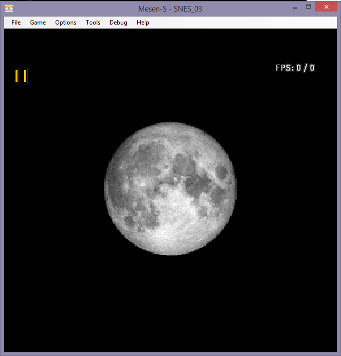
Here’s what it looks like. It’s not much, but we need to start somewhere.

SNES_01

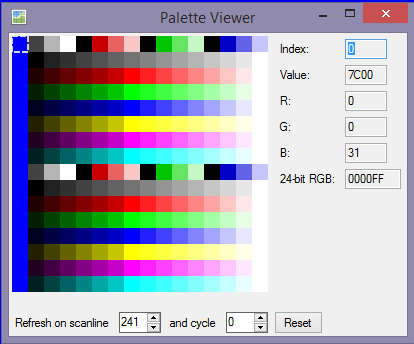
And, if you look at the palette viewer, you can see our color at index 0.

PaletteView

.

Before we go, I just want to briefly mention the other files here.

Init.asm is the RESET code (and a few other bits). It zeroes all the registers and RAM and gets us to square one, before jumping long to main. Don’t feel like you need to understand every line in this file. Focus on the main code for now.

macros.asm is a few assembler macro definitions, like A8, AXY16, etc.

regs.asm is a list of constants, the SNES hardware registers. Also there are some constants that I wrote that will help.

If you want to  read about the hardware registers, go here…

https://wiki.superfamicom.org/registers

variables.asm is a list of variables, which are in the “zeropage” or “BSS” (LoRAM) segments. There is just a little bit here used by the init code. We will add to this later.

And, lastly, the compiled ROM is the SNES_01.sfc file. This is what you should open in an emulator. I recommend the MESEN-S emulator. The usual file extension for SNES files are .sfc or .smc. SFC for Super Famicom and SMC for Super Magicom (a cartridge dumper / copier from the old days).

https://github.com/SourMesen/Mesen-S/releases

.

By the way, I had written a library of code (EasySNES), but I did not use most of it here. I was discussing the matter with some friends, and I feel that SNESdev could be taught better with simpler examples, and the library will just obfuscate what is really going on.

(SNESdev SNES SFC Super Nintendo Super Famicom programming tutorial)

.

My apologies, since this first tutorial is essentially the same as this one…

https://wiki.superfamicom.org/writing-your-first-snes-program

I didn’t copy it. We just both coincidentally arrived at the same first step. Oh well. The next steps will be different.

SNES main page

How ca65 works

SNES game development, continued…

.

Just one more subject before we can actually get to write our SNES program. Using the assembler. You should have read some of the 6502 tutorials and read up on 65816 assembly basics… before heading any further.

First, we need to write our program in a text editor. I use Notepad++. You can use any similar app that can save a plain text file. We will save our files as .s or .asm. It might help if you include a path to the ca65 “bin” folder in environmental variables, so windows can find it. You can also just type a path in the command prompt, which will tell the system to look for ca65 and ld65 in the bin folder, which is one level up from the current directory.

set path=%path%;..\bin\

ca65 is a command line tool. If you just double click ca65, a box will open and then close. To run it, you need to first open a command prompt (terminal). To open a command prompt in Windows 10, you click on the address bar and type CMD. A black box should appear. You would type something like…

ca65 main.asm -g

for each assembly file. The -g means include the debugging symbols. If it assembles correctly, you should have .o (object files) of the same name. Then you use another program ld65 (the linker) to put them all together using a .cfg file as a map of how all the peices go together.

ld65 -C lorom256k.cfg -o program1.sfc main.o -Ln labels.txt

The -C is to indicate the .cfg filename (lorom256k.cfg). The -o indicates the output filename (program1.sfc). Then it lists all the object files (there is only 1, main.o). Finally, the -Ln labels.txt outputs the addresses of all the labels (for debugging purposes).

I use a batch file to automate the writes to the command line. Instead of opening a command prompt box, I just double click on the compile.bat file. I don’t want to go into detail about writing batch files, but mostly you will just need to add a ca65 line for each assembly file (unless they are “included” in the main assembly file, in which case they become part of that asm file). Then edit the ld65 line to include all object files.

Here’s some links to the ca65 and ld65 documents.

https://cc65.github.io/doc/ca65.html

https://cc65.github.io/doc/ld65.html

.

Take a look at some of my example code, such as this one.

https://github.com/nesdoug/SNES_01

It has a .cfg file and some basic assembly files just to get to square one. There is some initial code (init.asm), which zeroes the RAM and the hardware registers back to a standard state. We don’t want to touch that code. It works. Then there is a header section of the ROM so that emulators will know what kind of SNES file we have (see header.asm).

.segment “SNESHEADER”
;$00FFC0-$00FFFF

.byte “ABCDEFGHIJKLMNOPQRSTU” ;rom name 21 chars
.byte $30 ;LoROM FastROM
.byte $00 ; extra chips in cartridge, 00: no extra RAM; 02: RAM with battery
.byte $08 ; ROM size (2^# kByte, 8 = 256kB)
.byte $00 ; backup RAM size
.byte $01 ;US
.byte $33 ; publisher id
.byte $00 ; ROM revision number
.word $0000 ; checksum of all bytes
.word $0000 ; $FFFF minus checksum

The checksum isn’t actually important. If it’s wrong, nothing bad will happen. The important line is the one that says “LoROM FastROM” after it.

And there are VECTORS here. The vectors are part of how the 65816 chip works. It is a table of addresses of important program areas. The reset vector is where the CPU jumps when the SNES is first turned on, or if the user presses RESET. There are some interrupt vectors like NMI and IRQ which we can discuss later. The important thing is that our reset vector points to the start of our init code, and that the end of the init code jumps to our main code. Also, our reset code MUST be in bank 00.

;ffe4 – native mode vectors
COP
BRK
ABORT (not used)
NMI
RESET (not used in native mode)
IRQ

;fff4 – emulation mode vectors
COP (not used)
(not used)
ABORT (not used)
NMI
RESET (yes!)
IRQ/BRK

.

Let’s talk about the basic terminology of assembly files.

Constants

Foo = 62

They look like this. Foo is just a symbol that the assembler will convert to a number at compile time. It should go above the code that uses it.

LDA #Foo …becomes… LDA #62

.

Variables

There are 2 types of variables. BSS (standard) and Zero Page. On the SNES we call it Direct Page, but the assembler still calls it Zero Page. You have to put their definitions in a zeropage segment, which our linker file will specifically define as zeropage type (it will recognize this as a special type of RAM).

.segment “ZEROPAGE”

temp1: .res 2

This reserves 2 bytes for the variable “temp1”.

.segment “BSS”

pal_buffer: .res 512

This reserves 512 bytes for a palette buffer. Our linker .cfg file will probably define the BSS segment to be in the $100-$1fff range.

Our code will go in a ROM / read-only type segment.

.segment “CODE”

LDA temp1

STA pal_buffer

.

Labels

Main:
  LDA #1
  STA $100

Main: is a label. It should be flush left in the line. To the assembler, Main is a number, an address in the ROM file. We could then jump to Main…
jmp Main
or branch to Main…
bra Main

One assembly file may not know the value of a label in another file. So we might need a .export Main in the file where Main lives, and a .import Main in the other file.

.

Instructions

Also called opcodes. These are 3 letter mnemonics that the assembler converts to machine code. Some assemblers require whitespace to be on the left of the instructions (such as a tab or 2-3 spaces). I don’t believe ca65 requires this, but you might as well follow that standard practice.

Code:
  LDA cats
  AND #1
  CLC
  ADC #$23
  STA cats
  JSR sleep

.

Comments

Use a semicolon ; to start a comment. The assembler will ignore anything after the semicolon. In the linker .cfg file, use # to start a comment.

.

Directives

These are commands that the assembler will understand.

.segment “blah”
.816
.smart
.a16
.a8
.i16
.i8
.byte $12
.word $1234

segment tells the assembler that everything below this should go in the “blah” segment. 816 tell it that we are using a 65816 cpu. smart means automatically set the assembler to 8-bit or 16-bit depending on SEP and REP instructions. a16 sets the assembler to generate 16-bit assembler instructions for the A register. a8 for 8-bit. i16 sets the assembler to have 16-bit index instructions. i8 for 8 bit index registers. “byte” is to insert an 8-bit value into the ROM ($12 in this example). “word” is to insert a 16-bit value into the ROM ($34 then $12 in this example).

There are many other directives. Here are some important ones…

.include “filename.asm”

to include an assembly language file in another file.

.incbin “filename.chr”

to include a binary (ie. data) file in an assembly file. This example, CHR, is a graphics file.

.

65816 specific precautions

The most important thing to be careful with is register size. Your code needs REP and SEP commands to change the register size ( I use macros called A8, A16, XY8, XY16, AXY8, and AXY16). If you have .smart at the top of the code, the assembler will automatically adjust the assembly to the correct register size when it sees a REP or SEP that affect the register size flags… but, it is a good idea to put the explicit directives in at the top of each function. We need to make sure that the function above it doesn’t set the wrong register sizes. Those directives are .a8 .i8 .a16 and .i16.

Just to clarify– .a8 is an assembler directive to change the assembly output. A8 is a macro that will output a SEP #$20, which (when executed) will set the CPU into 8-bit Accumulator mode. .smart will see the SEP #$20 and automatically set the assembly output to 8-bit. But there are still possible errors, for example, something like this…

Something_stupid:  
  A16 ;set A to 16 bit mode
  lda controller1
  and #KEY_B
  beq Next_Bit
  A8 ;set A to 8 bit mode
  lda #2
  sta some_variable
Next_Bit:

What do you think would happen? The assembler will think everything below A8 has the A register in 8 bit mode, including everything below Next_Bit, even though the beq could branch there with the processor still in 16 bit mode. This could crash or create unusual bugs. So, you should put an A16 directly after the Next_Bit label, to ensure registers are in a consistent size.

Also, you might want to bookend many of your subroutines with php (at the start) and plp (at the end) if the subroutine changes the processor size in any way. This will ensure that it returns safely from the subroutine with the exact processor size that it arrived with.

Alternatively, you could try to do have a consistent register size for most of your code. For example, keep the A register 8 bit and the XY registers 16 bit… or perhaps keep all registers 16 bit for 90% of the code. An approach like that would reduce REP SEP changes and have fewer potential register size bugs.

If the subroutine changes any other registers (such as the data bank register B) you should also push that to the stack at the beginning of the subroutine and restore it at the end.

It is common to have data, and the code that manages that data, in the same bank. An easy way to set the data bank register to the same bank that the code is executing in is PHK (push program bank) then PLB (pull data bank). I have seen code that jumps to another bank do this, to save/restore the original data bank settings…

PHB
PHK
PLB
JSR code
PLB
RTL

But, maybe we don’t need to do that at EVERY subroutine. The overhead would be quite tedious and slow.

.

Another precaution, if a subroutine ends in RTL, you must JSL to it. And if a subroutine ends in RTS, you must JSR to it. You will probably find these errors quickly, though, because your program will crash.

Finally

Let’s review the linker file. lorom256k.cfg.

# Physical areas of memory
MEMORY {
ZEROPAGE: start = $000000, size = $0100;
BSS: start = $000100, size = $1E00;
BSS7E: start = $7E2000, size = $E000;
BSS7F: start = $7F0000, size =$10000;
ROM0: start = $808000, size = $8000, fill = yes;
ROM1: start = $818000, size = $8000, fill = yes;
ROM2: start = $828000, size = $8000, fill = yes;
ROM3: start = $838000, size = $8000, fill = yes;
ROM4: start = $848000, size = $8000, fill = yes;
ROM5: start = $858000, size = $8000, fill = yes;
ROM6: start = $868000, size = $8000, fill = yes;
ROM7: start = $878000, size = $8000, fill = yes;

}

# Logical areas code/data can be put into.
SEGMENTS {
# Read-only areas for main CPU
CODE: load = ROM0, align = $100;
RODATA: load = ROM0, align = $100;
SNESHEADER: load = ROM0, start = $80FFC0;
CODE1: load = ROM1, align = $100, optional=yes;
RODATA1: load = ROM1, align = $100, optional=yes;
CODE2: load = ROM2, align = $100, optional=yes;
RODATA2: load = ROM2, align = $100, optional=yes;
CODE3: load = ROM3, align = $100, optional=yes;
RODATA3: load = ROM3, align = $100, optional=yes;
CODE4: load = ROM4, align = $100, optional=yes;
RODATA4: load = ROM4, align = $100, optional=yes;
CODE5: load = ROM5, align = $100, optional=yes;
RODATA5: load = ROM5, align = $100, optional=yes;
CODE6: load = ROM6, align = $100, optional=yes;
RODATA6: load = ROM6, align = $100, optional=yes;
CODE7: load = ROM7, align = $100, optional=yes;
RODATA7: load = ROM7, align = $100, optional=yes;

# Areas for variables for main CPU
ZEROPAGE: load = ZEROPAGE, type = zp, define=yes;
BSS: load = BSS, type = bss, align = $100, optional=yes;
BSS7E: load = BSS7E, type = bss, align = $100, optional=yes;
BSS7F: load = BSS7F, type = bss, align = $100, optional=yes;

}

The memory area defines several RAM areas. Then it defines 8 ROM areas ROM0, ROM1, etc. Notice they all start at xx8000 and are all $8000 bytes (32kB). This is typical for LoROM mapping. In LoROM, the ROM is always mapped to the $8000-FFFF area. The 0-7FFF area is almost always a mirror of this…

$0-1FFF LoRAM (mirror of 7e0000-7e1fff)

$2000-$4FFF Hardware registers

In LoROM, we have access to these almost all the time with regular addressing modes.

The alternative is called HiROM, which can have ROM banks extend from $0000-FFFF. This doubles the maximum size of ROM, but makes access to LoRAM and Hardware Registers more awkward. This tutorial won’t be using HiROM.

You might notice that the bank is $80 instead of $00. $80 is a mirror of $00 (they access the same memory), but $80+ has faster ROM accesses, whereas $00 are slower. (you also need to change a hardware setting in the $420d register, and should indicate FastROM type in the SNES header). The game will reset into the $00 bank, and we need to jump long to the $80 bank to speed it up slightly.

On a side note, a 256kB ROM size is actually unusually small. 512 kB, 1 MB, 2 MB, and 4 MB are also possible. You should be able to double the size of the test ROMs with no trouble. Just double the number of ROM banks in the config file and in the header file. We won’t cover HiROM, but it also goes up to 4 MB (a few games managed up to 6 MB with a special board).

.

Ok. Some real code next time.


SNES main page


What you need, SNESdev

Before we start actually programming for the SNES, you will need a few things.

  1. An assembler
  2. A tile editor
  3. Photoshop or GIMP
  4. a text editor
  5. a good debugging emulator
  6. a tile arranging program
  7. a music tracker

65816 Assembler

I use ca65. It was designed for 6502, but it can assemble 65816 also. I am very familiar with it, and that is the main reason I use it. There is also WLA (which some other code examples and libraries use) and ASAR (which the people at SMWcentral use). For spc700 (which is another assembly language entirely) you could use the BASS assembler, by byuu/near.

http://cc65.github.io/cc65/

(Click on Windows snapshot)

Why not use cc65 c compiler? It doesn’t produce 65816 assembly, it produces 6502 (8 bit) assembly only. The code generated is totally inappropriate. There is the tcc816 c compiler, which works with the PVSnesLib. It compiles to the WLA assembler. Frankly, I just didn’t feel like learning these tools. But they are here, if you are interested.

https://github.com/alekmaul/pvsneslib

Link to the bass assembler, if you want to write your own SPC code. (This would be exceptionally difficult, and I won’t cover writing SPC programs).

https://github.com/ARM9/bass

These are command line tools. If you are not familiar with using command line tools, check out this link to catch up to speed. In windows 10, I have to click the address bar and type CMD (press enter) to open up a command line prompt. Watch a few of these tutorials to get the basics.

You might notice that I use batch files (compile.bat) to automate command line writes. You could use these or makefiles (which are a bit more complicated), to simplify the assembly process. I just double click the .bat file, and it executes all the assembling / linking commands.

Tile Editor

I prefer YY-CHR for most of my graphics editing. For 16 color SNES, change the graphic format to “4bpp SNES”. For 4 color SNES, change the graphic format to “2bpp GB”. The gameboy uses the same bitplane format as SNES.

The .NET version of YY-CHR has been improved, and can even do 8bpp SNES formats [EDIT – I can’t confirm that the 8bpp modes work right. They aren’t working for me. The 2bpp and 4bpp modes work.]. Here’s the current link for the better version.

https://w.atwiki.jp/yychr/sp/

Another very good app is called superfamiconv. It is a command line tool for converting indexed PNG (with no compression) to CHR files (snes graphic formats). It also makes palettes and map files. You could use it to convert your pictures to SNES format, and then later edit those files with YY-CHR.

The command line options are a bit complex, but it really does a fantastic job.

https://github.com/Optiroc/SuperFamiconv

Or you can use M1TE or SPEZ or M8TE (see below) for importing graphics and editing.

Photoshop or GIMP

GIMP is sort of a free image tool like Photoshop. You can use any similar tool to draw your art.

https://www.gimp.org/downloads/

You will have to resize the image to 256×256 or smaller and save as PNG before you can import it into M1TE. You might want to Image/Mode/Indexed and reduce to 16 color first before you save it. M1TE can reduce the color count, but I think GIMP is a bit better at it.

Text Editor

I use Notepad++. You could use any text editor, even plain old Notepad. You need to write your assembly source code with a text editor.

https://notepad-plus-plus.org/download/

Debugging Emulator

I have used several emulators in the past. This year (2020) the emulator to use is MESEN-S. It is brand new, but it blows the other emulators away in terms of useful tools.

https://www.mesen.ca/

It has a Debugger with disassembly and breakpoints. Event viewer. Hex editor / memory viewer. Register viewer. Trace logger. Assembler. Performance Profiler. Script Window. Tilemap Viewer. Tile Viewer. Sprite Viewer. Palette Viewer. SPC debugger. I might write an entire page just on this emulator. It’s cool.

One note, for a developer. Make sure when you rebuild a file, that you don’t select it from the picture that pops up when you open MESEN-S, but rather always select the file from File/Open. Otherwise, it will auto-load the savestate, which is the old file before it was reassembled.

I also like to change the keyboard input settings. For some reason he has mapped MULTIPLE settings at the same time, and none of them exactly what I would choose. So Option/Input/Setup, click on each Key Setup and clear them all (clear key bindings button) and then manually set a keyboard key for each button. I like the ASZX for YXBA buttons and arrow for direction pad.

Tile Arranger

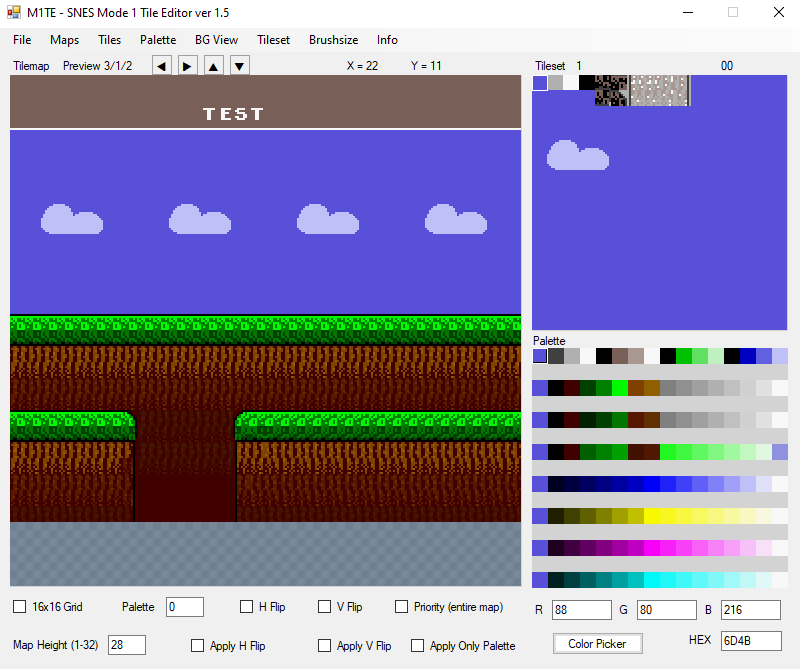
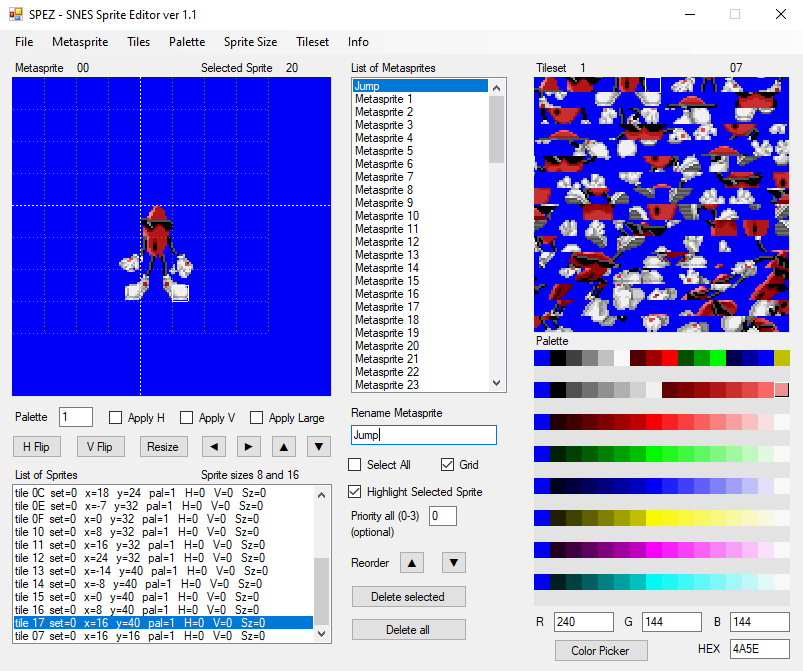
I have been trying to make my own tools for SNES game development. M1TE (mode 1 tile editor) is for creating background maps (and palettes and tiles). SPEZ is for creating meta sprites that work with my own code system (Easy SNES). You may not need SPEZ, but definitely download M1TE.

One main benefit of M1TE is palette editing and conversions. It can load a YY-CHR style palette and output a SNES format palette. And the reverse. Remember not to name the SNES palette file as the same name as your CHR file and .pal extension, or YY-CHR will auto-load it as a RGB palette, and fail.

https://github.com/nesdoug/M1TE2

https://github.com/nesdoug/SPEZ

Go to the “Releases” page to download the exe file. They are .NET Windows app, and can also run on non-Windows computers with MONO.

M1TE

SPEZ

I recently made a new tool M8TE, which is the same as M1TE except it works for 8bpp tiles (Mode 3 or 7).

https://github.com/nesdoug/M8TE/

.

I also use Tiled Map Editor for creating data for games. You might find it useful.

https://www.mapeditor.org/

Music Tracker

I have been working with the SNES GSS tracker and system written by Shiru. I have been told there was a bug in the code that causes games to freeze. You might want to download the tracker from my repo, which has been patched to fix the bug. (it’s the snesgssQv2.exe file).

https://github.com/nesdoug/SNES_00/tree/master/MUSIC

and use the music.asm file here, since the original was written to work with tcc-816 and WLA. I rewrote it all in assembly for ca65.

.

You may want to use another music system. SNES MOD is a popular option (used with OpenMPT). Other systems are currently in development.

I think that’s enough for today. Next time, we can discuss using the ca65 assembler.

SNES main page

Further in 65816

I wrote some 6502 ASM tutorials a while back.

26. ASM Basics

Feel free to check them out (5 pages total). You can test various things with this online 6502 emulator…

https://skilldrick.github.io/easy6502/

All the information here will transfer perfectly toward 65816 programming. Stay on this until you understand it, before moving on to any more.

Or, if you prefer video tutorials…

Opcodes References 6502

http://www.6502.org/tutorials/6502opcodes.html

http://www.obelisk.me.uk/6502/reference.html

Quick Explanation of 65816 ASM

I will just cover some basics, and then mention the differences between 6502 and 65816.

Data transfer.

You need to load data to a register to move it. Any of the registers can do this.

LDA $1000 ; load A from address $1000
STA $800 ; store/copy A to address $800

LDX $1000 ; load X from address $1000
STX $800 ; store/copy X to address $800

LDY $1000 ; load Y from address $1000
STY $800 ; store/copy Y to address $800

and, depending on register size this would move 1 byte or 2. If it moved 2 bytes, it would get the lower byte from $1000 and the upper byte from $1001.

Note, you can write comments in ASM with a ; semicolon. Everything after the semicolon is ignored by the assembler.

Addressing modes.

Depending on how the LDA is written in assembly, you can perform multiple kinds of operations.

Direct Page

(similar to the zero page from 6502)

LDA $12 – load A from the direct page address $12. If direct page register is $0000 this will load A from $000012 (direct page is always in the $00 bank).

Absolute

LDA $1234 – loads A from the address $1234, in the bank defined by the Data Bank Register. If the Data Bank is $00… will load A from $001234.

Absolute Long

LDA $123456 – loads A from address $3456 in the $12 bank.

Immediate

LDA #$12 – loads A with the value $12. Always needs a preceding #. Might be an 8 bit or a 16 bit value depending on the mode of A.

Direct Page Indexed

Indexed modes are for arrays of bytes, using index registers to select an element of that byte array. Direct page is always in bank zero.

LDA $12, X – same as direct page, but the X register is added to the address number. If X is $10, this would load A from the address $22.

LDA $12, Y – same, but the Y register is added to the address number.

(X and Y are NOT restricted to 8 bit, and can extend $ffff bytes forward, except that the final address bank will be $00. Direct page mode always uses bank $00 as the final location.)

Absolute Indexed

LDA $1234, X – same as absolute, but the X register is added to the address number.

LDA $1234, Y – same as absolute, but the Y register is added to the address number.

(X and Y don’t wrap, and if address + X > $ffff it will temporarily increase the data bank byte to extend into the next bank. This is true of every indexed mode except for the direct page indexed.)

Absolute Indexed Long 

LDA $123456, X – same as absolute long, but the X register is added to the address number. (only X can do this mode)

Indirect

This is how pointers work on the 6502 (65816) CPU. The pointer is loaded to 2 consecutive direct page addresses.

LDA ($12) – $12 is an address in the Direct Page. It takes a byte from $12 (lower byte) and $13 (upper byte) to construct an address, then the bank byte from data bank register, and then loads from that address. If $12 = $00 and $13 = $80, then this would load A with the value at address $018000 (if the data bank is $01).

Indirect Long

Like Indirect, but 3 consecutive bytes are stored in the Direct Page to construct a long address. Low byte, High byte, then Bank byte.

LDA [$12] – If $12 = $00 and $13 = $80 and $14 = $02, loads A from the value at address $028000.

Indirect, Y

LDA ($12), Y – same as Indirect, but the indirect address is added to the Y register to get a final address to load to A from.

Indirect Long, Y

LDA [$12], Y – same as Indirect Long, but the indirect long address is added to the Y register to get a final address to load to A from.

Indirect, X

This is for an array of pointers. Each pointer (2 bytes each) is in the Direct Page, and you will need to increase X by 2 to switch between them.

LDA ($12, X) – Let’s say X is 2, so we don’t want to look at RAM addresses $12 and $13, but rather $14 and $15. RAM address $14 holds the value 00, RAM address $15 holds $80, and the data bank is $01. This will load A with the value at address $018000.

.

https://wiki.superfamicom.org/65816-reference

Changes in the 65816 (from 6502)

** If you don’t understand all these things, don’t worry. You can always come back to it later, as these things come up. I frequently have to check the WDC manual to be reminded of all the details of each instruction, and I’ve been doing this 10 years. **

Zero page has been replaced with direct page, which is movable by changing the DP register. Just keep it $0000 for most purposes.

The hardware stack is no longer fixed. It can be any address in the zero bank. (on the SNES should be set at $1fff at the start of the program).

The A, X, and Y registers can be 8 or 16 bits. See SEP / REP below.

Many operations can now be 8 or 16 bytes depending on the size of the A register. ADC, AND, ASL, BIT, CMP, DEC, EOR, LDA, LSR, ORA, PHA, PLA, ROL, ROR, SBC, STA, STZ, TRB, and TSB… are all dependent on the size of the A register.

BRK has its own vector. Could be used for software purposes or debugging.

.

NEW INSTRUCTIONS

Long addressing

(can’t be Y)
ADC long
ADC long, X
AND long
AND long, X
CMP long
CMP long, X
EOR long
EOR long, X
JMP long aka JML
JSR long aka JSL (also RTL return long)
LDA long
LDA long, X
ORA long
ORA long, X
SBC long
SBC long, X
STA long
STA long, X

Store Zero

Stores zero at an address without changing A. (1 or 2 bytes depending on size of A)
STZ dp
STZ dp, X
STZ absolute
STZ absolute, X
(can’t do long)

Branching

BRA branch always
BRL branch always long (2 bytes, signed)
(don’t use BRL, just do JMP. BRL is for a system that might load a program anywhere in the RAM, relocatable code. Not really for the SNES.)

JMP (indirect) will look for a 2 byte address on bank zero, and jump to an that address, but always jumping to the current program bank. If it says JMP ($1234) it will look at $001234 and $001235. If 001234 is $50 and 001235 is $60, it will jump to address $6050 in the current program bank.

JMP [indirect long] will look for a 3 byte address on bank zero, and combine them to create a long jump address to anywhere. If the 2 byte value in brackets is [$1234] it will look at $001234, $001235, and $001236 for the 3 bytes, combine them to a long address, and jump to that.

JMP (indirect, X) is for an array of function pointers (a jump table), using X to switch between the different indirect jump addresses. Unlike JMP (indirect), which looks for the indirect address on the zero bank, the JMP (indirect, X) mode will look for the indirect address in the CURRENT PROGRAM BANK. (and it will jump to an address in the current program bank). X should be an even number. You should have a table of addresses (2 bytes each) at this location, and use X to choose which one. This indirect jump is the most useful. Remember it.

JSR (indirect, X) . same as above, except you can return from the function with RTS.

INC / DEC

now available for the A register.

dec A . is the same as A = A – 1
inc A . is the same as A = A + 1

Indirect with or without Y Index

(dp means that the pointer needs to be located in the direct page)
ADC (dp) . . ADC (dp), Y
AND (dp) . . AND (dp), Y
CMP (dp) . . CMP (dp), Y
EOR (dp) . . EOR (dp), Y
LDA (dp) . . LDA (dp), Y
ORA (dp) . . ORA (dp), Y
SBC (dp) . . SBC (dp), Y
STA (dp) . . STA (dp), Y

Indirect Long and Indirect Long Indexed

With or without Y indexing

ADC [dp] . . ADC [dp], Y
AND [dp] . . AND [dp], Y
CMP [dp] . . CMP [dp], Y
EOR [dp] . . EOR [dp], Y
LDA [dp] . . LDA [dp], Y
ORA [dp] . . ORA [dp], Y
STA [dp] . . STA [dp], Y
SBC [dp] . . SBC [dp], Y

SEP/REP

To set register size, we use REP or SEP (reset processor flag, set processor flag).
REP #$20 set A 16 bit
SEP #$20 set A 8 bit
REP #$10 set XY 16 bit
SEP #$10 set XY 8 bit
or combine them…
REP #$30 set AXY 16 bit
SEP #$30 set AXY 8 bit

(REP and SEP can be used to change other processor status flags).

(note the # for immediate addressing)

Transfers between registers.

now include
TXY – transfer x to y
TYX – transfer y to x
TCS – transfer A register to stack pointer
TSC – transfer stack pointer to A register

Size mismatch from transfers between A and index registers X or Y. Think about the destination size, that will tell you how many bytes will transfer.
A8 -> X16 or Y16 transfers 2 bytes, remember that A in 8 bit, the high bit exists
A16 -> X8 or Y8 transfers 1 byte
X8 or Y8 -> A16 transfers 2 bytes, and the upper byte of A is zeroed. XY in 8 bit always have zero as their upper byte.
X16 or Y16 -> A8 transfers 1 byte, the upper byte of A unchanged

Stack Relative

Uses the stack pointer as a base, added to a constant as the index.

You would push variables to the stack before calling a jsr or jsl.
The stack pointer is always points to 1 less than the last value pushed, so start from 1. If JSR to a function, then add 2 more. If JSL to a function then add 3 more.

ADC sr, S
AND sr, S
CMP sr, S
EOR sr, S
LDA sr, S
ORA sr, S
SBC sr, S
STA sr, S

Example… STA 1, S

Stack Relative Indirect

Push a pointer to an array to the stack. Index that array with Y.
ADC (sr, S), Y
AND (sr, S), Y
CMP (sr, S), Y
EOR (sr, S), Y
LDA (sr, S), Y
ORA (sr, S), Y
SBC (sr, S), Y
STA (sr, S), Y

Block Moves

To copy a chunk of bytes from one memory area to another. MVN Block Move Next and MVP Block Move Previous.

You are supposed to use MVN to move from a lower address to a higher one, and MVP from a higher address to a lower. For MVN, X holds the start address of src and Y holds the start address of dest, and A (always 16 bit, regardless of size of A) holds the # of bytes to transfer minus 1. For MVP, X holds the end address of the src block and Y holds the end address of the dest block.

Just use MVN, it’s easier to use.

The byte order in the binary is opposite of what the standard syntax indicates, so I tend to use a macro to handle this, because it’s confusing. And there was a change in ca65 source code which reverses the order, so code will break if you use the wrong version of ca65 (grumble).

MVN src bank, dest bank
MVP src bank, dest bank

The registers should be 16 bit before using MVN or MVP. Also, they have an annoying issue, where they will overwrite the data bank register, so it is probably a good idea to push that register to the stack before MVN/MVP and restore it (pull it from the stack) after the MVN/MVP procedure.

Push to stack

PEA address
PEI (dp)
PER relative-address

PEA which is called push effective “address”, but it really just pushes a 16 bit value to the stack without using a register. It doesn’t have to be an address. It is very useful for any 16 bit immediate push to the stack. You don’t need to change a register size either, it always pushes a 16 bit value.

PEI pushes a (16 bit) value stored on the direct page (in bank zero) to the stack.

PER pushes a value from the same bank, in a 16 bit relative distance from this instruction. You could use stack relative or pull it to a register from after pushing the value or address to the stack.

NOTE: the standard syntax here is confusing for PEA and PEI. PEA actually works like a 16-bit immediate mode, but (for unknown reasons) omits the # hash. PEI actually works like Direct Page Addressing, but (for unknown reasons) has unnecessary parentheses () making it look like an Indirect Mode. I have reread the documents 4-5 times and it works like PEI $12… but the official syntax is PEI ($12). ca65 expects the official syntax.

Pushing / pulling the new registers

PHB – push data bank register to stack
PHD – push direct page register to stack
PHK – push program bank register to stack
PHX – push X register to stack
PHY – push Y register to stack
PLB – pull from stack to data bank register
PLD – pull from stack to direct page register
PLX – pull from stack to X register
PLY – pull from stack to Y register

Transfers with A

(always copies 16 bits regardless of size of A)
TCD – transfer from A to direct page register
TCS – transfer from A to stack pointer
TDC – transfer from direct page register to A
TSC – transfer from stack pointer to A

Test and Set Bits / Test and Reset Bits

TRB dp
TRB address
TSB dp
TSB address

TRB, test and reset bits. A register (8 or 16 bits) has the bits to change. If a bit in A is 1 it will be zeroed at the address location. If a bit in A is 0 it remains unchanged.

TSB, test and set bits. A register (8 or 16 bits) has the bits to change. If a bit in A is 1 it will be set (1) at the address location. If a bit in A is 0 it remains unchanged.

There is also a testing operation, as if the value in A was ANDed with the address, and the z flag is set if A AND value at address would equal zero. Unrelated to the setting or resetting operation.

More

COP – jump to COP vector (for a coprocessor routine)
XBA – swap high and low bytes of A (works even if A is 8 bit)
XCE – move carry to CPU mode (emulator or native modes)
STP – stops the CPU, only reset will start it again. Don’t use this.
WAI – wait till interrupt, halts the CPU until IRQ or NMI trigger.
WDM # – nothing, but useful for debugging. Followed by a number, which could be used to locate where you are in the code (in a debugger).

(in older version of ca65, WDM won’t work. I think it was fixed around 2017.)

Some more links, to other descriptions of 65816 ASM

https://www.smwcentral.net/?p=section&a=details&id=14268

http://6502.org/tutorials/65c816opcodes.html

And these links again, for reference.

https://wiki.superfamicom.org/65816-reference

Programming the 65816

SNES main page

.

65816 Basics

Programming the SNES in assembly, using the ca65 assembler.

Assembly Language Basics

Assembly is a low level programming language. We have to think at the basic level that the CPU processes the binary code. Let’s review binary, and hexadecimal numbers.

Number Systems

Binary. Under the hood, all computers process binary numbers. A series of 1s and 0s. In the binary system, each column is 2x the value of the number to the right.

0001 = 1
0010 = 2
0100 = 4
1000 = 8

You then add all the 1’s up

0011 = 2+1 = 3
0101 = 4+1 = 5
0111 = 4+2+1 = 7
1111 = 8+4+2+1 = 15

Each of these digits is called a bit. Typically, there are 8 bits in a byte. So you can have numbers from
0000 0000 = 0
to
1111 1111 = 255

Since it is difficult to read binary, we will use hexadecimal instead. Hexadecimal is a base 16 numbering system. Every digit is 16x the number to the right. We use the normal numbers from 0-9 and then letters A-F for the values 10,11,12,13,14,15. In many assembly languages, we use $ to indicate hex numbers.

$0 = 0
$1 = 1
$2 = 2
$3 = 3
$4 = 4
$5 = 5
$6 = 6
$7 = 7
$8 = 8
$9 = 9
$A = 10
$B = 11
$C = 12
$D = 13
$E = 14
$F = 15

$F is the same as binary 1111.

The next column of numbers is multiples of 16.

$00 = 16*0 = 0 _____ $80 = 16*8 = 128
$10 = 16*1 = 16 _____ $90 = 16*9 = 144
$20 = 16*2 = 32 ____ $A0 = 16*10 = 160
$30 = 16*3 = 48 ____ $B0 = 16*11 = 176
$40 = 16*4 = 64 ____ $C0 = 16*12 = 192
$50 = 16*5 = 80 ____ $D0 = 16*13 = 208
$60 = 16*6 = 96 ____ $E0 = 16*14 = 224
$70 = 16*7 = 112 ____ $F0 = 16*15 = 240

$F0 is the same as binary 1111 0000.
add that to $0F (0000 1111) to get
$FF = 1111 1111

So you see, you can represent 8 bit binary numbers with 2 hex digits. From $00 to $FF (0 – 255).

To get the assembler to output the value 100 you could write…

.byte 100

or

.byte $64

.

16 bit numbers

Typically (on retro systems) you use 16 bit numbers for memory addresses. Memory addresses are locations where pieces of information can be stored and read later. So, you could write a byte of data to address $1000, and later read from $1000 to get that data.

The registers on the SNES can be set to either 8 bit or 16 bit modes. 16 bit mode means it can move information 16 bits at a time, and process the information 16 bits at a time. 16 bit registers means that it will read a byte from an address, and another from the address+1. Same with writing 16 bits. It will write (low order byte) to the address and (high order byte) to address+1.

In binary, a 16 bit value can go from
0000 0000 0000 0000 = 0
to
1111 1111 1111 1111 = 65535

In hex values, that’s $0000 to $FFFF.

Let’s say we have the value $1234. The 12 is the most significant byte (MSB), and the 34 is the least significant byte (LSB). To calculate it’s value by hand we can multiply each column by multiples of 16.

$1234
4 x 1 = 4
3 x 16 = 48
2 x 256 = 512
1 x 4096 = 4096
4096 + 512 + 48 + 4 = 4660

To output a 16 bit value $ABCD, you could write

.word $ABCD
(outputs $cd then $ab, little endian style)

Don’t forget the $.

We can also get the upper byte or lower byte of a 16 bit value using the < and > symbols before the value.

Let’s say label List2 is at address $1234

.byte >List2
will output a $12 (the MSB)

.byte <List2
will output a $34 (the LSB).

.

24 bit numbers

We can now access addresses beyond $ffff. There is a byte above that called the “bank byte”. Using long 24 bit addressing modes or changing the data bank register, we can access values in that bank using regular 16 bit addressing. Here is an example of a 24 bit operation.

LDA f:$7F0000
will read a byte from address $0000 of the $7F bank (part of the WRAM).

In ca65, the f: is to force 24 bit values from the symbol / label. The assembler will calculate the correct values. (to force 16 bit you use a: and to force 8 bit you use z:)

JML $018000
will jump to address $8000 in bank $01.

To output a 24 bit value
.faraddr $123456
(outputs $56…$34…$12)

Or you could do this, to output a byte at a time.
.byte ^$123456
(outputs $12)
.byte >$123456
(outputs $34)
.byte <$123456
(outputs $56)

But we don’t want to write our program entirely using byte statements. That would be crazy. We will use assembly language, and the assembler will convert our three letter mnemonics into bytes for us.

LDA #$12
(load the A register with the value $12)

will be converted by the assembler into this machine code that the 65816 CPU can execute…

$A9 $12

.

65816 CPU Details

There are 3 registers to work with

A (the accumulator) for most calculations and purposes

X and Y (index registers) for accessing arrays and counting loops.

A,X, and Y can be set to either 8 bit or 16 bit. The accumulator is sometimes called C when it is in 16 bit mode. Setting the Accumulator to 8 bit does not destroy the upper byte, you can access it with XBA (swap high and low bytes). However, setting the Index registers to 8 bit will delete the upper bytes of X and Y.

There is a 16-bit stack pointer (SP or S) for the hardware stack. If you call a function (subroutine) it will store the return address on the stack, and when the function ends, it will pop the return address back to continue the main program. The stack always exists on bank zero (00). The stack grows downward, as things are added to it.

Processor Status Flags (P), are used to determine if a value is negative, zero, greater/lesser/equal to, etc. Used to control the flow of the program, like if/then statements. Also the register size (8 bit or 16 bit) are set/reset as status flags. *(see below)

There is a 16-bit direct page (DP) register, which is like the zero page on the 6502 system, except that it is now movable. Typically, people leave it set to $0000 so that it works the same as the 6502. Zero page is a way to reduce ROM size, by only using 1 byte to refer to an address. The DP always exists on bank zero (00).

The Program Bank Register (PBR or K) is the bank byte (highest byte) of the 24 bit address of where the program is running. Together, with the program counter (PC) the CPU will execute the program at this location. The PBR does NOT increment when the PC overflows from FFFF to 0000, so you can’t have code that flows from one bank to another. You can’t directly set the PBR, but jumping long will change it, and you can push it to the stack to be used by the…

Data Bank Register (DBR or B) is the bank byte (highest byte) of the 24 bit address of where absolute addressing (16 bit) reads and writes. Usually you want to set it to the same as where your program is running. You do it with this…

PHK (push program bank to stack)
PLB (pull from stack to data bank)

But you can also set it to another bank, to use absolute addressing to access that bank’s addresses.

There is also a hidden switch to change the processor from Native Mode (all 65816 functions) to Emulation Mode (compatibility for legacy 6502 software, with direct page fixed to $0000-00ff, stack fixed to $0100-01ff, registers fixed to 8 bit only). The CPU powers on in Emulation Mode, so you will usually see

CLC (clear the carry flag)
XCE (transfer carry flag to CPU mode)

near the start, to put it in Native Mode. That’s what we want, native mode.

.

Status Flags

NVMXDIZC
– – – B – – – – (emulation mode only)

N negative flag, set if an operation sets the highest bit of a register
V overflow flag, for signed math operations
M Accumulator size, set for 8-bit, zero for 16-bit
X Index register size, set for 8-bit, zero for 16-bit
D decimal flag, for decimal (instead of hexadecimal) math
I IRQ disable flag, set to block IRQ interrupts
Z zero flag, set if an operation resets a register to zero
. . . . or if a comparison is equal
C carry flag, for addition/subtraction overflow

B break flag, if software break BRK used.

.

Where does the program start? It always boots in bank zero, in emulation mode, and pulls an address (vector) off the Emulation Mode Reset Vector located at $00FFFC and $00FFFD, then jumps to that address (always jumping to bank zero). Your program should set it to Native Mode, after which these are the important vectors.

IRQ $00FFEE-00FFEF (interrupt vector)
NMI $00FFEA-00FFEB (non-maskable interrupt vector)

If an interrupt happens, it will jump to the address located here (always jumping to bank zero).

There is no Reset Vector in Native Mode. Hitting reset will automatically put it back into Emulation Mode, and it will use that Reset Vector.

But more on those later.

I highly recommend you learn more about 6502 assembly before continuing. Here are some links that are helpful.

http://www.6502.org/tutorials/6502opcodes.html

https://skilldrick.github.io/easy6502/

https://archive.org/details/6502_Assembly_Language_Programming_by_Lance_Leventhal/mode/1up

and 65816 assembly reference here.

https://wiki.superfamicom.org/65816-reference

and for the very bold, the really really big detailed book on the subject. You might want to download it just for reference.

Programming the 65816

SNES main page

SNES Overview

SNESconsole

The Super Nintendo first came out in 1991 (1990 in Japan as the Super Famicom). It was one of the best game consoles of all time, with an amazing library of games. It definitely has a special place in my heart. Before we get to programming for it, let’s take a look and see what’s under the hood.

It contains a 65816 clone chip called the Ricoh 5A22 (3.58 MHz), which is a direct descendant of the 6502 chip that powers the original Nintendo. The instruction set is a super-set of the 6502 instruction set, and essentially all the 6502 codes work the same on both chips (with the bugs fixed). The chip has both 8 bit and 16 bit modes, and has a full 24 bit addressing space (0 to 0xFFFFFF).

(borrowed this image from https://copetti.org/projects/consoles/super-nintendo/ )

motherboard_marked

It has 128kB internal WRAM.

This unit has 2 PPU chips. Later models had 1 chip (marked as “1chip”) and are slightly better, but both function the same, other than picture quality. The PPU is what generates the video image. It has its own 64 kB of VRAM (arranged as 32 kB addresses of 16 bits). The VRAM holds our graphics and background maps.

Background tiles can be 8×8 or 16×16. Background maps can be 32×32, 64×32, 32×64, or 64×64 tiles in size (multiplied by the tile size). Giving from 256×256 pixel map (8×8 tiles and 32×32 map) to 1024×1024 pixel map (16×16 tiles and 64×64 map). Scrolling games will typically change the map as you move through the level… to give the appearance of an even larger map.

There is also a memory chip for color palettes (CGRAM) of 512 bytes. Color palettes are 15 bits per color, RBG 0bbbbbgggggrrrrr, so 512 bytes gives us a total of 256 colors. And  another RAM chip for sprite attributes (OAM) of 544 bytes, arranged as a low table of 512 and a high table of 32.

Sprites are 4 bytes (and 2 extra bits) each, so 512 byte / 4 gives us 128 sprites displayable at once. Sprites can be various sizes, from 8×8 to 64×64. Typically they would be 8×8 or 16×16.

The CIC is the security chip. Each cartridge will need a matching chip to run.

The cartridge itself could contain battery backed SRAM for saving games. The cartridge can also have co-processors, such as the SuperFx chip.

On the other side of the motherboard are the audio chips. The audio CPU is marked S-SMP. It is a system that runs independently from the SNES CPU. This processor is a Sony SPC700 Audio CPU. It has it’s own 64 kB of RAM where you load the audio program, the song data, and the audio samples.

The audio program will then process the song data and set the 8 channels (DSP, digital signal processor) to play the different audio samples at different rates to generate different tones. The samples are compressed in a format called BRR.

When the SNES is switched on, the main program will have to load everything to the audio ram. This is actually a very slow process, and if you notice that games show a black screen for a few seconds when the game is first run, it is probably due to loading the sound RAM. Once the audio program is loaded, it will run automatically. The audio program can also get signals from the game (for example, to change songs, or to play a sound effect).

Graphics Modes

If you are familiar with the original Nintendo, the Super Nintendo works very similar except that everything is changeable. Backgrounds can have 8×8 or 16×16 tiles, small maps, large maps, 1 layer, 2 layers, 3 layers, 4 layers, all moving independently.

You can rearrange the VRAM any way you want. You can put maps first then BG tiles then sprite tiles. Or, BG tiles first then sprite tiles then BG maps. Or, you can have one giant 256 color BG that fills the entire VRAM and no sprite tiles. Any way you want.

Here’s a quick look at the different background modes.

Mode 0

4 layers of 4 colors per tile.

This mode is not as colorful (per tile). I generally only see it used for screens of text. The main advantages are the extra layer, and the graphics files are half the usual size. This mode is the most like the original Nintendo (or maybe Gameboy Color), and a game ported from there to the Super Nintendo (with no improvements) might use mode 0.

(It’s actually 3 colors plus 1 transparent per tile. Each layer has a unique 8 palettes to choose from. 8 palettes x 3 colors x 4 layers + 1 backdrop color = 97 BG colors for Mode 0)

Mode 1

2 layers of 16 colors per tile.

1 layer of 4 colors per tile.

This is the most used mode. Nearly every game uses mode 1 most of the time. Typically, the first 16 color layer for foreground and other for background. Then the 4 color layer is used for text boxes or HUD / score display.

(8 palettes, both 16 color layers share the same 8 palettes. 15 colors per palette x 8 palettes + 1 backdrop color = 121 BG colors. The 4 color layer has to share palette space with the first palette of the other layers.)

SMW

Mode 2

2 layers of 16 color.

Each tile can be shifted. See Tetris Attack, how the play area scrolls upward. This mode is very rarely used. Yoshi’s Island uses it for 1 level (Touch Fuzzy Get Dizzy).

TetrisAttack

Mode 3

1 layer of 256 colors per tile.

1 layer of 16 colors per tile.

This mode is very colorful, but the graphics files are twice as big as usual, so games typically only used them (if at all) for title screens. Like this…

Aero the Acro-Bat (USA)_000

Mode 4

1 layer of 256 colors per tile.

1 layer of 4 colors per tile.

Similar to mode 2, tiles can be shifted. Rarely used mode. Bust-A-Move uses Mode 4 for regular gameplay.

Mode 5

1 layer of 16 colors

1 layer of 4 colors

This mode is a high resolution mode. It is rarely used. RPM Racing uses it.

rpm-racing-usa_000

Mode 6

1 layer of 16 color

Also a high resolution mode. Also can shift tiles like mode 2 or 4. I’ve never seen this used outside of demos.

Mode 7

1 layer of 256 colors

This is the mode that really set Super Nintendo apart from other consoles. This mode is one layer that can zoom in and out and rotate the background. This mode is completely different from the other modes and has it’s own special graphics format that is hard to explain. Tiles are always 8×8 pixel and the map is always 128×128 tiles, giving a 1024×1024 pixel map.

Fzero

Interestingly, mode 7 does not naturally do perspective. It can stretch and rotate only. But, games like F-zero change the stretching parameters line by line to simulate perspective. As the PPU generates the image sent to the TV, it renders each horizontal line, one at a time, and the BG image becomes more and more zoomed in towards the bottom of the screen.

Really, all the modes can change parameters line by line. One fairly common technique is to change the main background color to create a gradient effect. It uses HDMA to do this, which is the only way to send data to the VRAM (or in this case, CGRAM) during the active screen time.

Batman

Sprites

For all the modes, the way sprites work is always the same. Sprites are always 16 colors (actually 15 since the 0th color always transparent). Also, sprites have different size modes (8×8, 16×16, 32×32, 64×64), and different priorities (which work like layers). You can flip them horizontally or vertically.

Like the NES, there is a limit of how many sprites can be displayed on each horizontal line, and the calculus for that is a bit complicated. If you split each large sprite into 8×1 slices, you can only fit 32 slices on a horizontal line. The 33rd will be invisible. Generally this isn’t a problem, but you should be aware of it.

All the characters on the screen are sprites. Mario. Koopas. Etc. Because sprites can be large and you can fill the screen with them, and move them around easily, sprites can be used for background elements and be considered as another background layer. Title screens often have the title written in sprites, for example. And, mode 7 games use sprites as a second layer.

Other possibilities

You can change modes and settings mid screen.

You can change scrolling mid screen, and create a shifting sine wave pattern, perhaps for fire or underwater scene.

You can do color transparencies. One layer added to another (or subtracted from another).

You can use “windows” to cut a hole in the screen, or narrow the screen from the sides, or even adjust the windows line by line with HDMA and draw shapes on the screen.

All these effects are more advanced, and we shouldn’t worry too much about that stuff yet.

I plan to write some basic tutorials for getting a very simple game working on the Super Nintendo. But, we need to take it very slowly.

SNES main page